Yomitan Setup Guide: Japanese Pop-Up Dictionary
This page covers how to set up and use the Yomitan browser extension, a popup dictionary for Japanese.
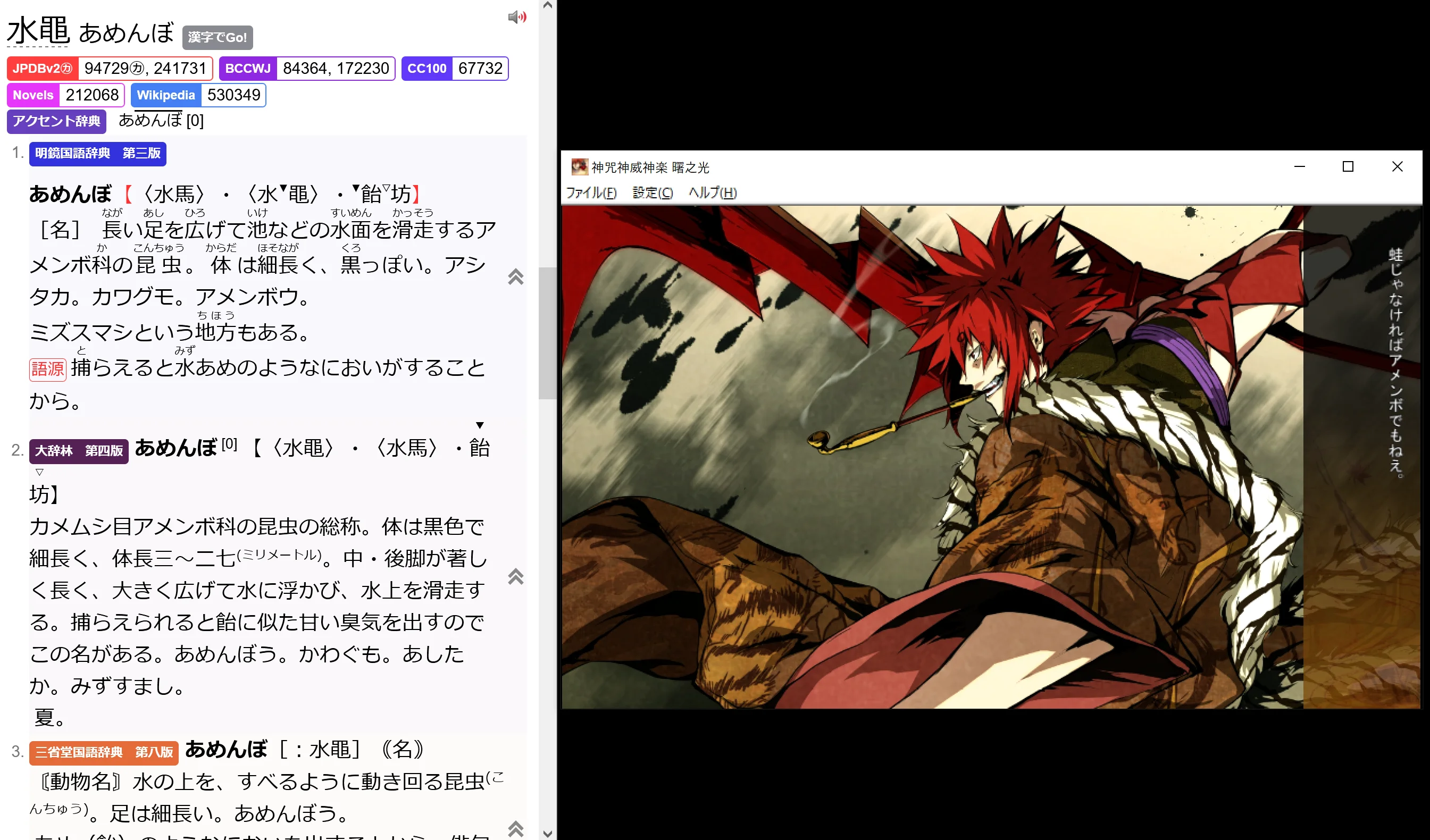
Yomitan works anywhere selectable text exists in your browser. If you are going to use it with a VN, pair it with a texthooker that outputs to browser, or use JL instead.
For more detailed setup instructions, check out the official Yomitan wiki.
Installation
Browser Options
Yomitan can be installed on Chrome, Firefox, or Edge:
First Launch
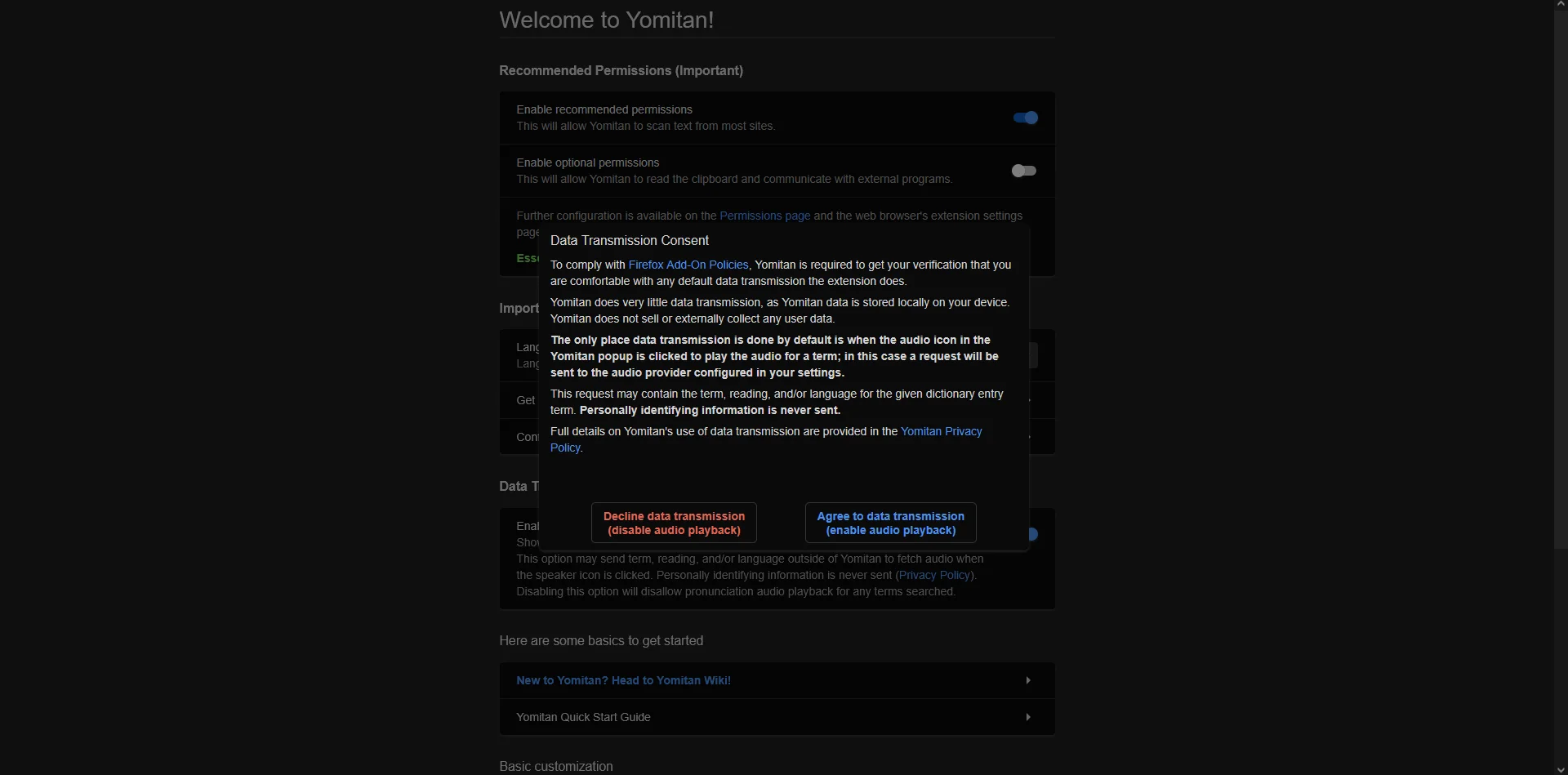
On first launch, you will be greeted by a pop-up titled "Data Transmission Consent" which will basically just ask you whether or not you want to enable audio playback. Enabling it is highly recommended as having access to it is one of the huge advantages that Yomitan and mining workflows have over other standard dictionaries. Press "Agree to data transmission" and then move on.
From the welcome page, I recommend quickly enabling some permissions such as: Enable optional permissions, ensure language is set to Japanese, under basic customization disable "Show this welcome guide on browser startup", enable scan using middle mouse button (great for one handed lookups :)). For setup past this point, open the full settings menu by pressing on the extension's icon and pressing the cog wheel.
Dictionary Setup
Getting Dictionaries
These sources will provide you with pretty much all of the dictionaries you could possibly ever need:
Marv's dictionary collection: https://github.com/MarvNC/yomitan-dictionaries
Shoui's dictionary collection: https://learnjapanese.link/dictionaries
I won't provide a specific recommended dictionary list because I encourage you to experiment and find a setup that suits you best. Really, the more dictionaries and the more information available to you, the better. Just keep in mind that running a dictionary-heavy setup might lead to some performance issues on weaker devices.
Importing Dictionaries
You can import dictionaries by pressing "Configure installed and enabled dictionaries…" to bring up the Dictionaries window. Here you can import any dictionary you downloaded by pressing import and selecting the zip file of the dictionary. The dictionaries must be in .zip format. Do not extract them.
Note that Yomitan requires at least one dictionary to function. If you see an orange exclamation mark on the extension icon, it means no dictionaries are enabled.
For more details on dictionary importing, see the official Yomitan wiki.
Dictionary Priority Order
Dictionary priority determines the order definitions appear in the popup. Higher priority dictionaries show their definitions first. You can reorder dictionaries by dragging them in the Dictionaries window.
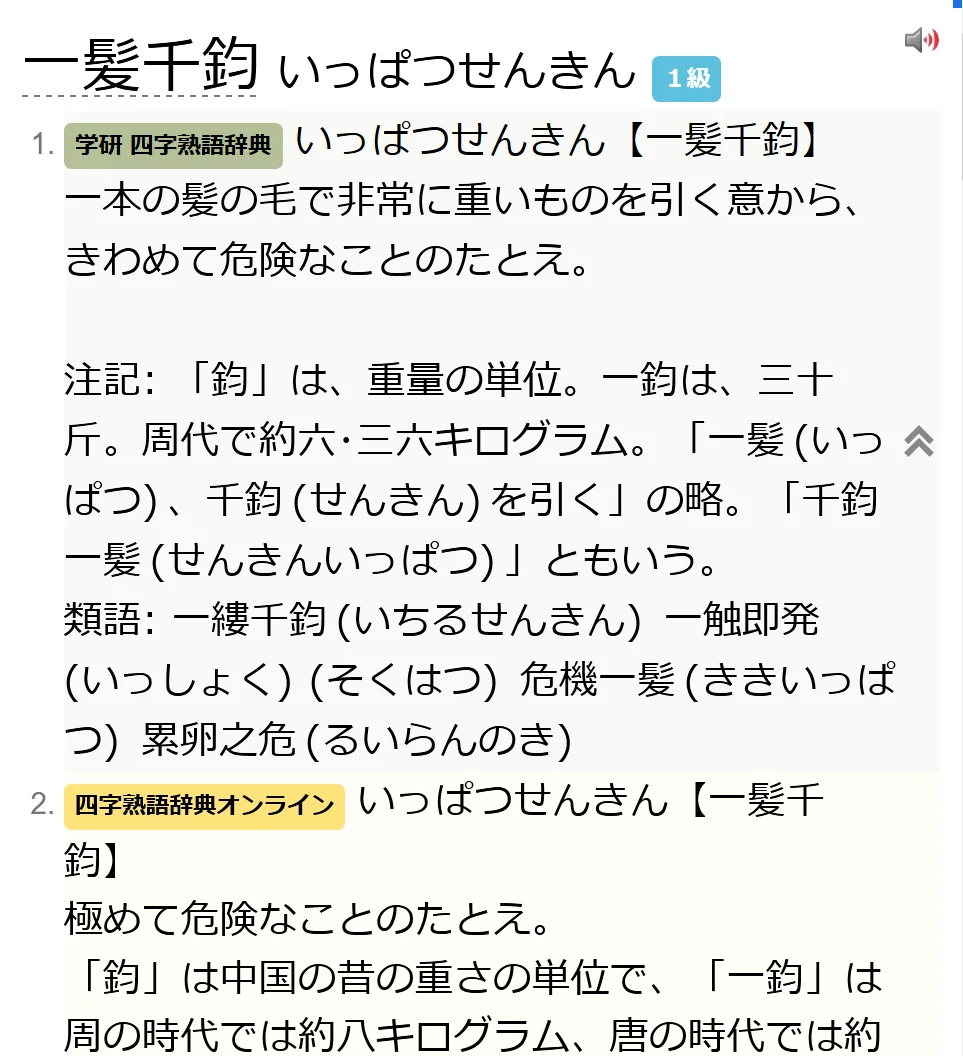
A common approach is to prioritize monolingual dictionaries at the top if you're comfortable reading Japanese definitions, with bilingual dictionaries (like JMdict) below as a fallback. I personally use 明鏡国語辞典 as my first dictionary. For beginners, keeping bilingual dictionaries at the top is perfectly fine.
You can check for updates by pressing the "Check for updates" button on the Dictionaries tab. This will work with any dictionary that supports auto-updates.
Basic Usage
Looking Up Words
Once you have dictionaries installed, you can look up words by holding whatever key you have set as your hotkey and hovering over the text. You can also use the mousewheel if you enabled it earlier during first launch setup.
You can also open the search page by clicking the Yomitan extension icon and then the magnifying glass icon. This lets you type in words directly to look them up.
Popup Settings
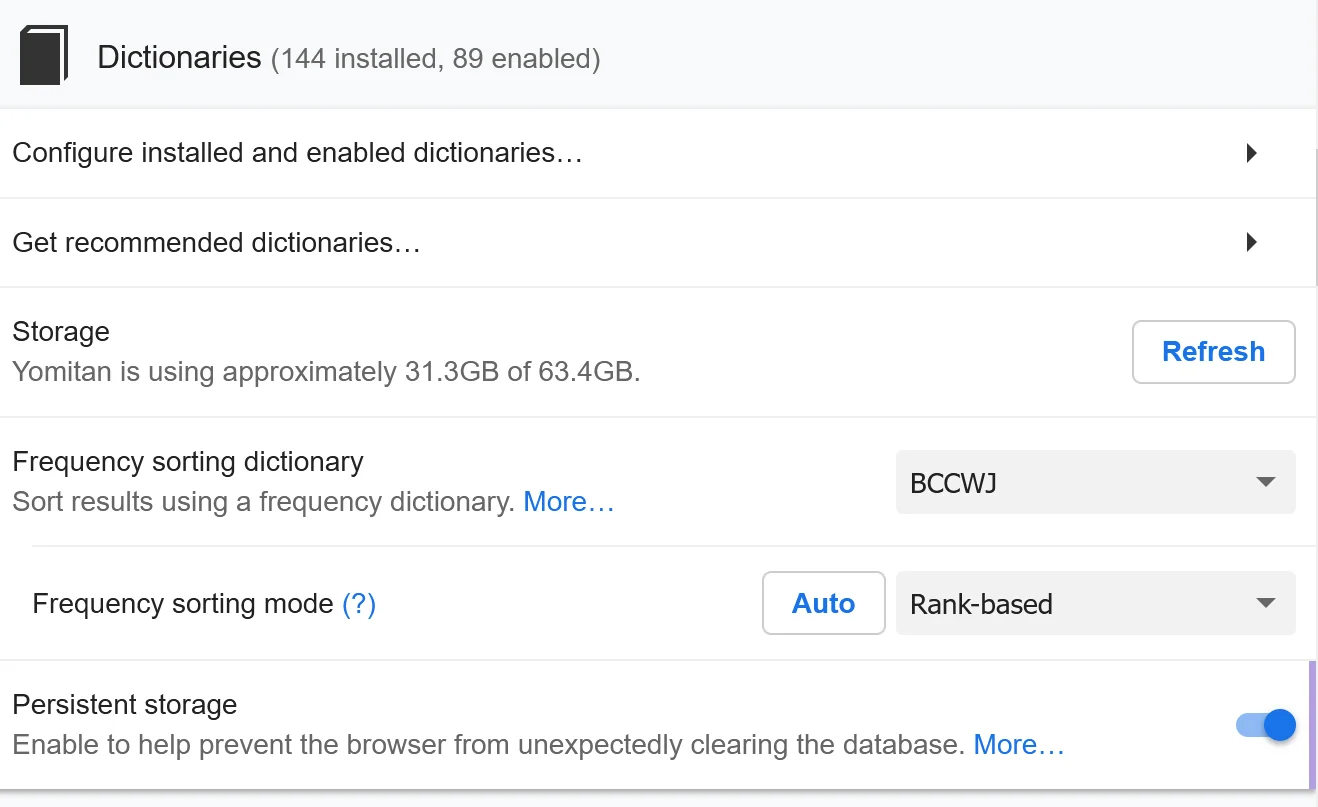
Under Dictionaries, you can add a frequency sort dictionary. This is the main frequency dictionary used to sort all of your results. I recommend using JPDB, Jiten, a BCCWJ variant, or CC100.
Under Popup Behavior, ensure "Allow scanning popup content" is enabled. It's also a good idea to increase the maximum number of child pop-ups—this is essential for looking up words inside monolingual dictionary definitions.
Under Appearance, you can choose light or dark mode. I personally turn on compact tags and only turn off the graph for pitch accent display styles to keep things clean.
This covers most of the important settings, but you are encouraged to experiment and see what works best for you.
Audio Playback
For local audio setup, check out: https://github.com/yomidevs/local-audio-yomichan
For more advanced audio configuration, you can also check out: https://animecards.site/yomitan_audio/
Anki Integration
Yomitan can create Anki flashcards directly from words you look up.
Setup:
- Install Anki and the AnkiConnect add-on
- In Yomitan settings, go to Anki and enable "Enable Anki integration"
- Configure your card format under "Configure Anki card format..."
Usage: With Anki running in the background, look up a word and click the green + button in the popup to add it to your deck.
If the button is grayed out, make sure Anki is open and AnkiConnect is installed correctly.
My Mining Setup
I recommend using the Lapis note type. Here are the recommended Yomitan field settings (from the Lapis documentation):
| Field | Value |
|---|---|
| Expression | {expression} |
| ExpressionFurigana | {furigana-plain} |
| ExpressionReading | {reading} |
| ExpressionAudio | {audio} |
| SelectionText | {popup-selection-text} |
| MainDefinition | {single-glossary-jmdict} or {single-glossary-jitendex} |
| Sentence | {cloze-prefix}<b>{cloze-body}</b>{cloze-suffix} |
| SentenceFurigana | Leave empty |
| SentenceAudio | Leave empty |
| Picture | Leave empty |
| Glossary | {glossary} |
| Hint | Leave empty |
| PitchPosition | {pitch-accent-positions} |
| PitchCategories | {pitch-accent-categories} |
| Frequency | {frequencies} |
| FreqSort | {frequency-harmonic-rank} |
| MiscInfo | {document-title} |
Note: Make sure the SentenceFurigana field is empty, as automatic Yomitan insertion doesn't preserve formatting.
Advanced Configuration
Yomitan offers many customization options beyond the basics covered here.
Using Profiles
I recommend creating one profile that includes both bilingual and monolingual dictionaries, and one profile that contains only monolingual dictionaries (and optionally one for just bilingual dictionaries). You can use hotkeys to quickly switch between them.
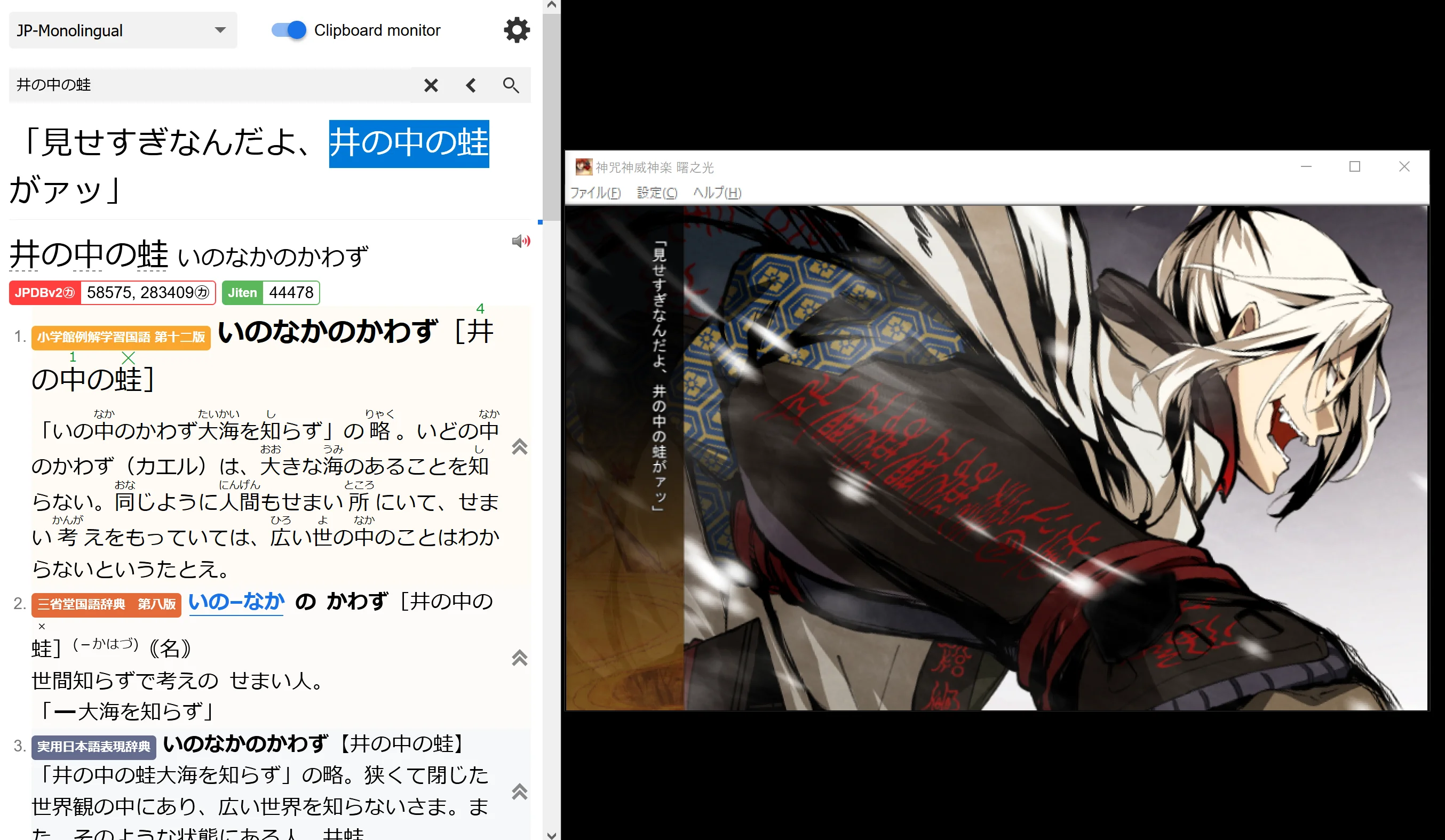
The idea behind this is that I recommend getting used to monolingual dictionaries from early on. Of course, it will be difficult at the start, but the good thing about Yomitan is that we can easily look up words within definitions, and I highly encourage you to do so. In the mixed profile, you can put your bilingual dictionaries higher up and peek at the monolingual ones whenever you feel like the bilingual definition isn't enough and need extra clarification. Eventually, you'll likely find that the monolingual definitions are just higher quality and more informative in general, and may want to default to using them instead.
Other Options
- Custom CSS - Style the popup appearance
- Import/Export - Back up and transfer your dictionaries and settings between devices
- Keyboard shortcuts - Customize hotkeys for various actions. I frequently use the "go to previous entry" and "go to last entry" shortcuts