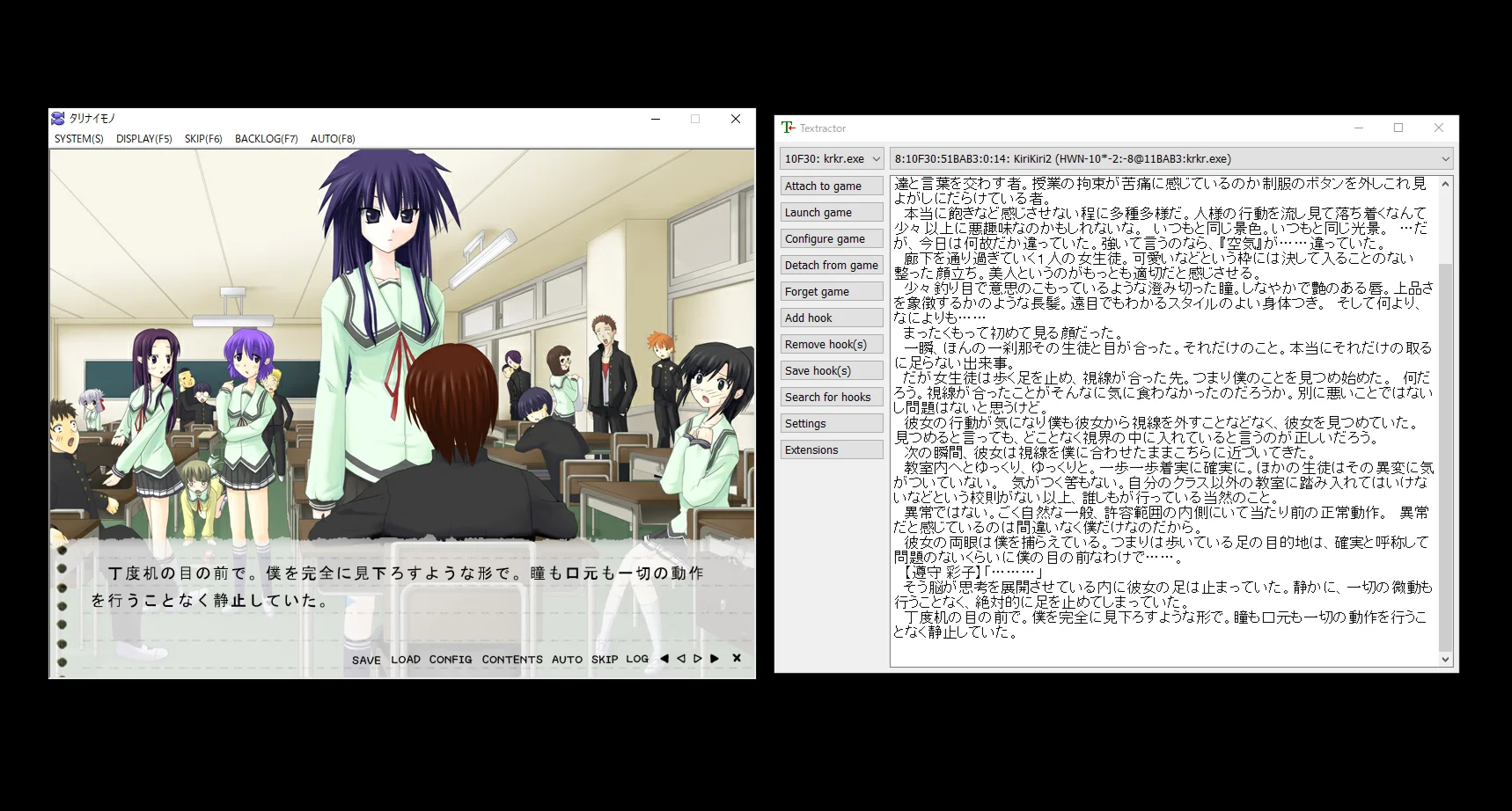
Requirements
Step 1: Set Up Textractor
- Download Textractor from Chenx221's GitHub. (On the releases tab, you will find a list of files that go texthook_xxxxxx.7z. Get the newest one listed as "Textractor (仅英语)")
- Extract the
.zipfile. - You will see two folders:
x86andx64. These correspond to 32-bit and 64-bit versions of Textractor.- Use
x86for most games. - Use
x64for modern visual novels that don't work with the x86 version.
- Use
Step 2: Install the WebSocket Extension
Download the WebSocket extension from the Releases page of the kuroahna/textractor_websocket repository.
File Setup
- Unzip the release package.
- Copy
textractor_websocket_x86.dllinto yourTextractor/x86folder. - Copy
textractor_websocket_x64.dllinto yourTextractor/x64folder.
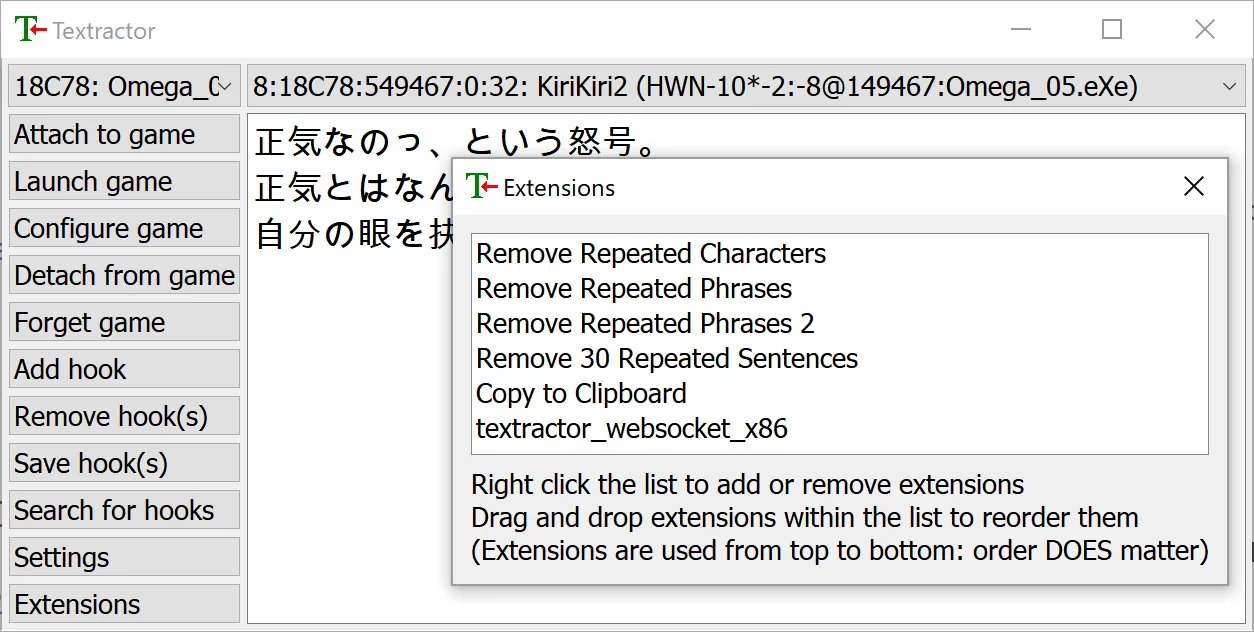
Add Extensions to Textractor
For x86:
- Open
Textractor/x86/Textractor.exe - Click the Extensions button (left sidebar).
- Right-click in the Extensions window → Add Extension
- In the file picker:
- Change the file type to
*.dll - Select
textractor_websocket_x86.dll
- Change the file type to
For x64:
- Open
Textractor/x64/Textractor.exe - Repeat the same steps above using
textractor_websocket_x64.dll
Tip: You can remove any unhelpful extensions (like extra new lines) from your Extensions list. My settings are provided below for reference.
Step 3: Hook the Visual Novel
-
Launch your visual novel and get to a point where you can start loading text.
-
Open the matching version of Textractor (
x86orx64) based on your game. -
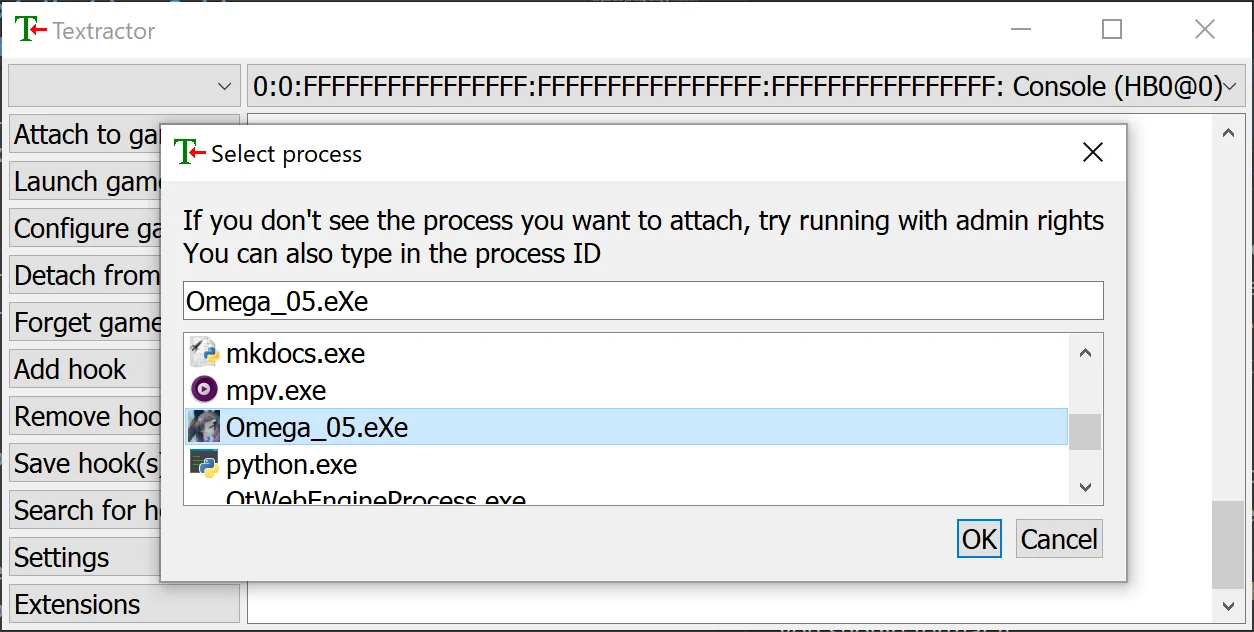
In Textractor, click "Attach to game" in the top-left to open the process list.
-
Select the visual novel’s process.
🛠 If the game doesn’t appear in the list, try running Textractor as Administrator.
-
Advance the VN by a few lines to generate text for Textractor to capture.
-
Use the top dropdown in Textractor (where it says "Console") and press up and down to cycle through the hooks.
-
Find a hook that accurately reflects the game's text.
If textractor can't automatically find a working hook, you can try searching manually by selecting "Search for hooks" or checking the discussion tab of the game's VNDB page to see if anyone has listed a working hook code.
How to View Text in the Browser
-
Open Renji-XD's Texthooker UI or Kizuna Texthooker in your browser. If the WebSocket is working, the colored icon in the top right should be green. If it's still red, trying clicking on it to reconnect.
-
Click the Start button in the top-right corner. (Or enable "Allow new Line during Pause" and "Autostart Timer by Line during Pause" in the settings.)
-
Once Textractor is hooked and sending text, the UI will display it in real time.
-
The WebSocket server will be automatically started by Textractor at:
ws://localhost:6677
This allows the texthooker UI to receive text directly from Textractor using the WebSocket extension.

Running Texthooker Page Locally for Mobile Access
Want to look up words on your phone or tablet while playing VNs fullscreen on your PC? By hosting the texthooker UI locally and using Tailscale, you can access the texthooker page from any device on your network while still receiving text via WebSocket. This lets you read and look up words without alt-tabbing or using tools like Magpie.
1. Build the Texthooker UI
First, install Node.js if you don't have it already.
Then clone or download Renji-XD's Texthooker UI from GitHub and build it:
npm install --global pnpm
pnpm install
pnpm run build
This creates a docs folder with the built application.
2. Run a Local Web Server
Create a file called start-server.bat in the texthooker-ui folder with the following contents:
@echo off
cd docs
python -m http.server 8080
pause
Double-click the batch file to start the server. The texthooker UI will be available at http://localhost:8080.
3. Set Up Tailscale (Recommended)
Tailscale creates a secure private network between your devices, allowing your phone to connect to your PC even when not on the same Wi-Fi.
- Install Tailscale on your PC and mobile device
- Sign in with the same account on both devices
- Note your PC's Tailscale IP address (visible in the admin console)
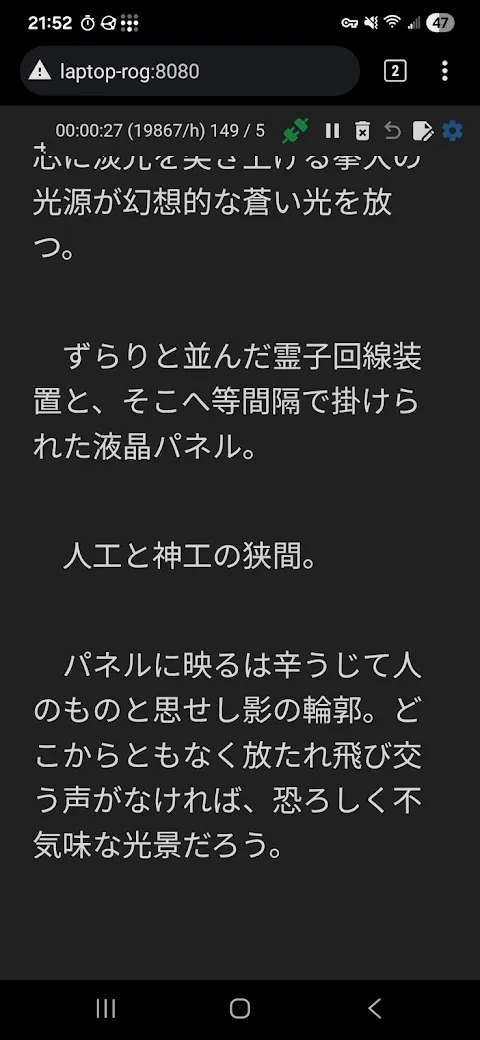
4. Access from Mobile
- On your mobile device, open
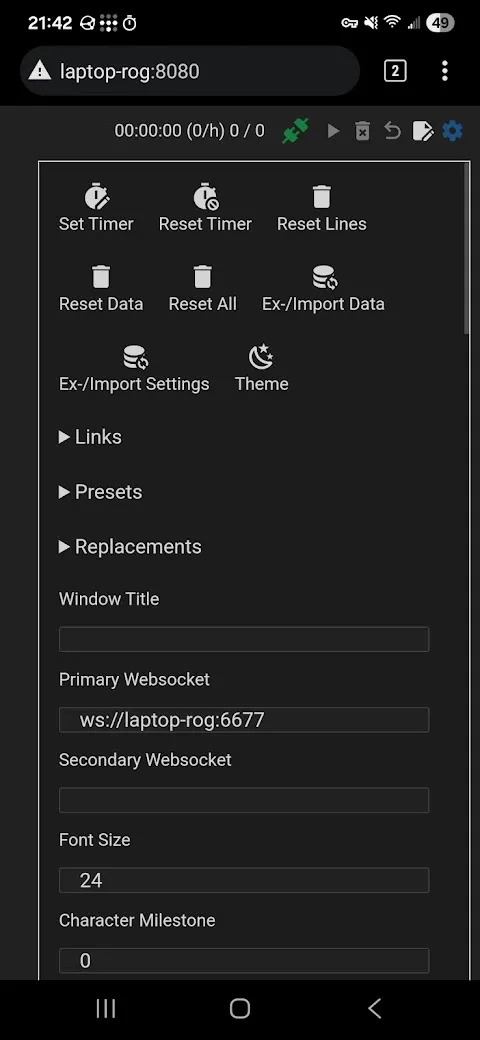
http://[your-ip]:8080in your browser (where[your-ip]is the IP of your PC running Textractor) - In the texthooker UI settings, change the WebSocket URL to
ws://[your-ip]:6677 - Click connect. You should now receive text from Textractor on your phone
Recommended Mobile Browsers
These browsers support Chrome extensions like Yomitan for dictionary lookups:
- Edge (Android/iOS) - Recommended
- Kiwi Browser (Android) - No longer maintained
Tip: This setup lets you keep your game running fullscreen while looking up words on a separate device. No need for windowed mode or screen upscalers.
Useful Regex Patterns
Below are common regular expressions you can use to clean up text captured by Textractor. These patterns can be used with the Textractor "Regex Filter" and "Regex Replacer" extensions, texthooking pages, or any text processing tool that supports regex.
Use RegExr to test and refine these patterns with your specific examples before applying them.
1. Remove bracketed speaker tags
Example: 【太郎】こんにちは → こんにちは
^\s*[【\[][^】\]]+[】\]]\s*
2. Remove everything before a name tag
Example: garbage【太郎】こんにちは → 【太郎】こんにちは
^.*?(?=[【\[][^】\]]+[】\]])
3. Strip ruby/furigana
Example: 今日《きょう》です → 今日です
《[^》]+》
Keep base text with leading pipe: |今日《きょう》 → 今日
|([^《]+)《[^》]+》
Replace with: $1
4. Remove timestamps
Example: [00:01:23]こんにちは → こんにちは
^\s*[\[\(]?\d{1,2}:\d{2}(?::\d{2})?[\]\)]?\s*
5. Normalize spaces and newlines
Example: こんにちは 世界 → こんにちは 世界
\u3000
Replace with: (single space)
Collapse repeated newlines:
\n{2,}
Replace with: \n\n
6. Remove control characters
Example: Remove invisible control characters
[\x00-\x1F\x7F]+
- Names that include punctuation (will be matched by the simple name patterns)
- Games using non-standard brackets or custom markup
- Make sure to test patterns on sample text before you continue reading
Additional Tips
- Keep both
x86andx64folders ready — the version depends on the VN. - Some games may not hook correctly if you set Textractor to automatically use a saved hook. Try restarting the game or clicking "Forget game".
- If you don't see text in the UI, check that:
- The WebSocket extension is installed correctly.
- Textractor is actually hooked to the VN.
- You're using a supported browser (Chrome, Firefox, Brave etc.).
- Your firewall settings and browser extensions aren't blocking the WebSocket connection.