Meikipop Setup Guide
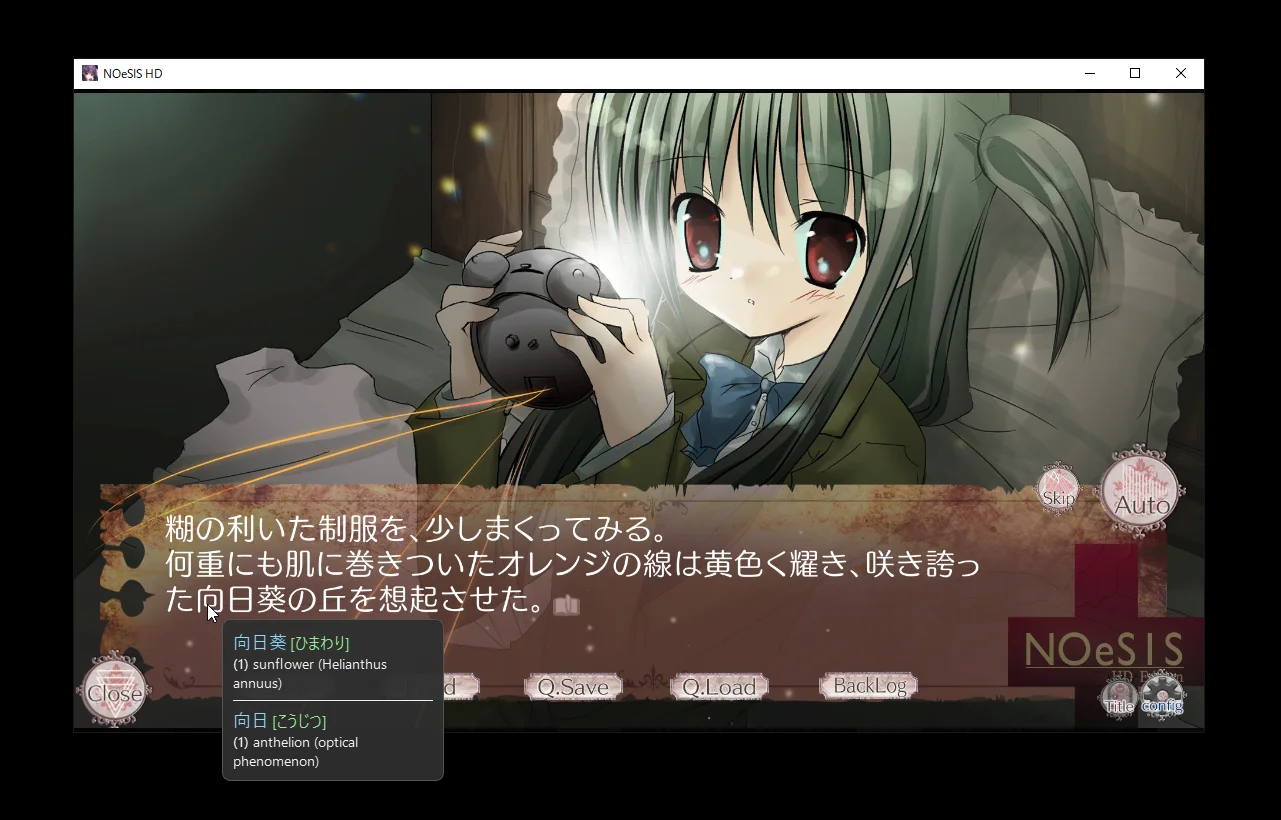
Meikipop is an incredibly fast OCR popup dictionary that lets you look up Japanese text that appears on your screen. Just hover your mouse over any text and you will get instant dictionary definitions.
Unlike browser extensions, Meikipop works with any on-screen text.
Installation
Prebuilt Binaries (Recommended)
- Download the latest release from the Meikipop Releases page
- Extract the archive to a folder of your choice
- Run the executable
The prebuilt binaries come with the dictionary included, so no extra setup is needed. Binaries are available for Windows, Linux, and macOS.
pip Install
If you have Python installed, you can also install Meikipop via pip:
pip install --upgrade meikipop
meikipop
The dictionary will download automatically on first run.
From Source
Requires Python 3.10+.
- Clone or download the repository
- Install in editable mode:
pip install -e . - Run:
meikipop
macOS Permissions
macOS users will need to grant these permissions in System Preferences:
- Input Monitoring - For hotkey detection
- Screen Recording - For capturing screen content
- Accessibility - For mouse position tracking
Basic Usage
- Launch the application - A system tray icon will appear
- Select scan region - On first launch, you'll be asked to select a screen region to scan
- Hover your mouse - Position over the Japanese text you want to look up
- View the popup - Dictionary results show up automatically
By default, Meikipop uses auto-scanning on mouse movement, so no hotkey is needed. You can reconfigure it to require a hotkey press if you prefer.
Right-click the system tray icon to access settings and options. Click it to quickly toggle scanning on/off.
Configuration
You can access settings through the system tray icon's right-click menu. Configuration and dictionaries are stored in platform-specific locations:
- Windows:
%LOCALAPPDATA%\meikipop\ - Linux:
~/.config/meikipop/ - macOS:
~/Library/Application Support/meikipop/
If you're upgrading from a pre-2.0 version, your old config won't carry over automatically. You'll need to manually copy your old configuration files to the new location above.

Available options:
- Hotkeys - Change the trigger key
- Themes and colors - Customize the popup appearance
- Scan region - Switch between region-specific or fullscreen scanning
- Auto scan mode - Continuous scanning on mouse movement (enabled by default)
- Scan interval - Configure how frequently the screen is scanned
- Popup content - Fine-grained control over what shows in the popup
- OCR provider - Choose between meikiocr (local, default), Google Lens, Chrome Screen AI, or OwOCR
Anki Mining Forks
If you want to make Anki cards directly from Meikipop, there are a couple of community forks worth checking out:
pnotisdev's fork
pnotisdev's fork adds:
- Anki card creation (Alt+A) - Captures screenshots and context sentences
- Duplicate detection - Prevents adding words already in your deck
- Automated audio - Fetches audio from languagepod101.com
- Additional shortcuts - Alt+C to copy text, Alt+J for Jisho
- More dictionaries - Supports monolingual dictionaries like kaikki
zurcGH's fork
zurcGH's meikipop-anki adds:
- Yomitan-style Anki integration - Card creation workflow similar to Yomitan
- Frequency and pitch accent - Displays frequency info and pitch accent marks
- Yomitan-api integration - Uses your existing Yomitan dictionaries (bilingual and monolingual)
- Toggleable features - Enable or disable individual features as needed
Neither fork has prebuilt releases. You'll need to build from source.
Limitations
The original Meikipop focuses specifically on dictionary lookups. It doesn't support:
- SRS flashcard mining (use JL or the Anki forks above)
- Multiple dictionaries simultaneously
Tips
- Auto scan mode (on by default) works well for games where text changes frequently and you want continuous lookups
- Especially handy for JRPGs with complex menus where text shows up all over the screen, compared to VNs where text is usually in a predictable spot
- For games that can be text hooked, consider using Textractor + JL instead
- Click the system tray icon to quickly toggle Meikipop on/off
- Meikipop includes a kanji dictionary with meanings, readings, and example words
- Compatible with Magpie for upscaled games