Neko Project II Setup Guide
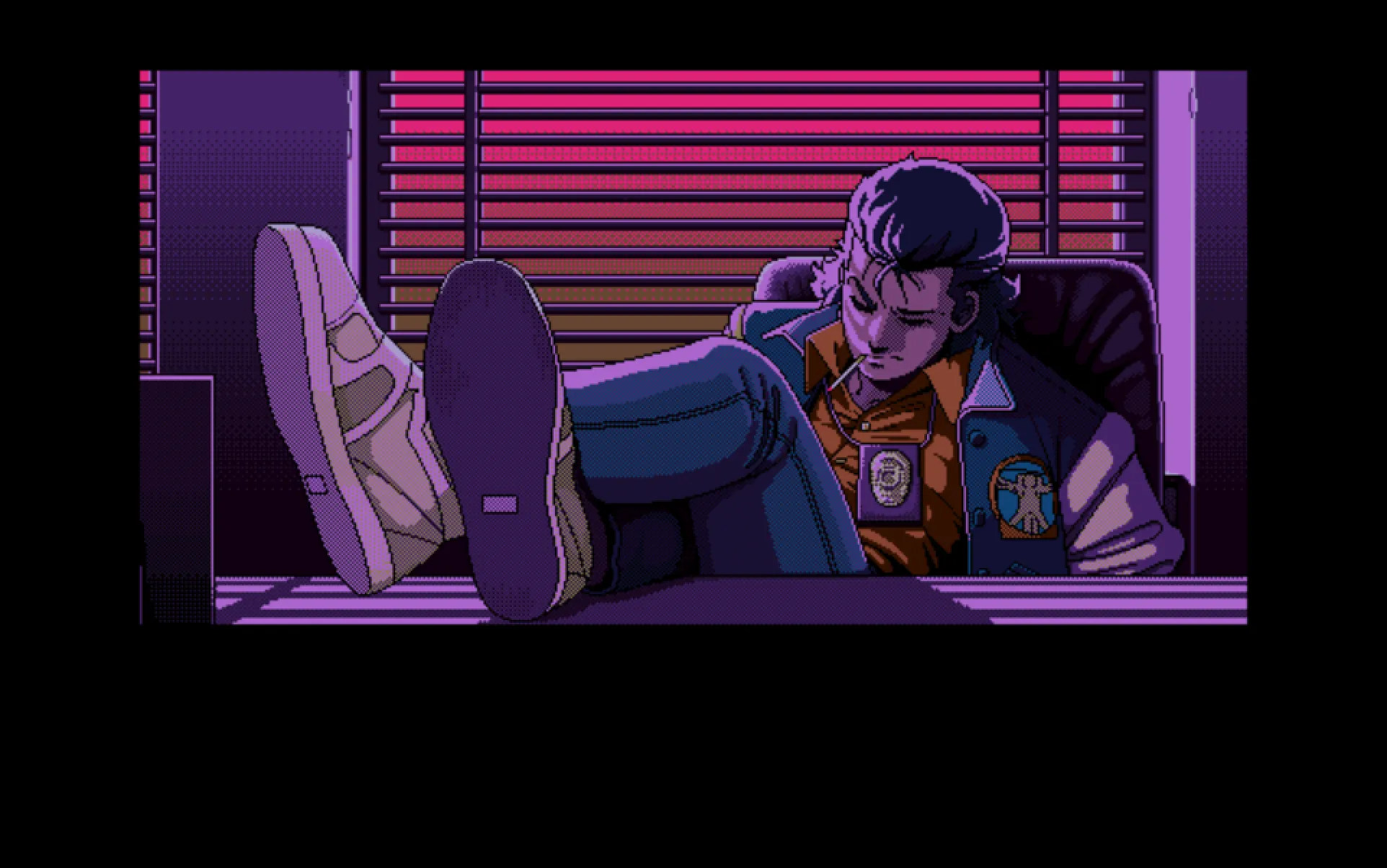
The PC-98 is home to a lot of classic visual novels and adventure games that never made it to modern platforms. If you want to play these in Japanese with text hooking support, you'll need an emulator. This guide covers setting up NekoProject 21/W (NP21W), which is the most accurate option available and supports text extraction for dictionary lookups.
Much of the setup portion of this guide is based on PC-98 Emulation For Beginners by PC-98 Bot. If you run into issues or want more detail on any step, check out their comprehensive guide.
I'm going to assume you're already familiar with tools like Textractor and dictionary software. If you're just getting started with learning Japanese, check out our main learning guide first.
What You'll Need
Required Downloads
Before we begin, grab these files:
- Neko Project 21/W - The most accurate PC-98 emulator. You need ver0.86 or later for text hooking to work.
- np2fmgen - An alternative build with useful speedup features. I recommend having both.
- Textractor - For extracting Japanese text from games
Optional but Recommended
Setting Up Neko Project 21/W
Download the latest version from the NP21/W download page, unzip it, and run np21w.exe once to generate the config file.
Recommended Settings
- Emulate → Configure: Set CPU multiplier to 42 (reduce to 32 if you're experiencing slowdown), Sound Sampling Rate to 88200Hz
- Emulate → Font: Load the improved FONT.ROM for better text readability
- Device → Sound Option → Mixer: Change FM from 64 to 128
- Screen → Screen Option: Enable 'Use skipline revisions' at 255 if scanlines make text hard to read
Other Settings of Note
- Emulate → Configure: Enable "Allow resize" and "Save window size". Under Sound, you can change the type from DirectSound to WASAPI or ASIO
- Emulate → Reset/Pause: Use these to restart or pause emulation
- Other → Calendar: Set to your real time (localtime) or use a virtual calendar
- Window icon menu: Click the icon in the top-left of the window for display options like window snap, restore window border, and preset resolution sizes
Loading and Playing Games

PC-98 games come as floppy images (.HDM, .FDD), hard disk images (.HDI, .NHD), or CD images (.ISO, .CUE). When available, always choose HDI/NHD files over floppies since they're pre-installed and don't require disk swapping.
| Format | Where to Load | Notes |
|---|---|---|
| Floppy (.HDM, .FDD) | FDD1 slot | May require disk swapping |
| Hard Disk (.HDI, .NHD) | IDE #0 | Recommended when available |
| CD (.ISO, .CUE) | IDE #2 | Set IDE Option: Primary=HDD, Secondary=CD-ROM |
After loading, go to Emulate → Reset to boot. If a game doesn't autoboot, type DIR /p to see files and run the .BAT file manually.
For CD games without an HDI file, use YAHDI as a universal boot disk.
Setting Up Text Hooking
This is the important part for Japanese learning. Without text hooking, you won't be able to use dictionary lookups or mine vocabulary efficiently.
If you haven't installed Textractor yet, follow our Textractor guide first.
Enable Text Hooking Support
Open np21w.ini (found in the same directory as np21w.exe) and add these lines under the [NekoProject21] section:
[NekoProject21]
USETHOOK=true
STATSAVE=true
WindposX=0
WindposY=0
Win_Snap=true
The USETHOOK=true line is what enables text hooking support. Without it, Textractor won't be able to hook into the emulator at all.
Connecting Textractor to NP21/W
- Start both
np21w.exeandTextractor.exe - In Textractor, click Attach to game and select
np21w.exefrom the process list - Click Add hook and enter:
HQ4@0:kernel32.dll:lstrlenW - Click OK (you should see a message like:
Textractor: inserting hook: UserHook#) - Load a game in NP21/W that displays Japanese text
- In Textractor, open the "UserHook#" entries and try each one. Look for lines like
W:XXXX:YYYYYYYY:ZZZZZZ:0: UserHook# (HQ4@0:kernel32.dll:lstrlenW). The correct hook is often the last entry.
Troubleshooting Text Hooking
Text Not Appearing: Make sure USETHOOK=true is in your np21w.ini. Try different UserHook entries in Textractor. Make sure the game is actually displaying text.
Garbled Text: Install the improved FONT.ROM file. Check that your system supports Japanese text display.
Hook Not Working: Verify you're using NP21/W ver0.86 or later. Restart both programs and try the connection again.
Missing Text: Certain games might not hook all text perfectly. Use OCR tools like OwOCR as a backup when text hooking fails.
Multiple Text Outputs: Some games output the same text multiple times. Just look for the cleanest, most complete version in Textractor.
Other Useful Features
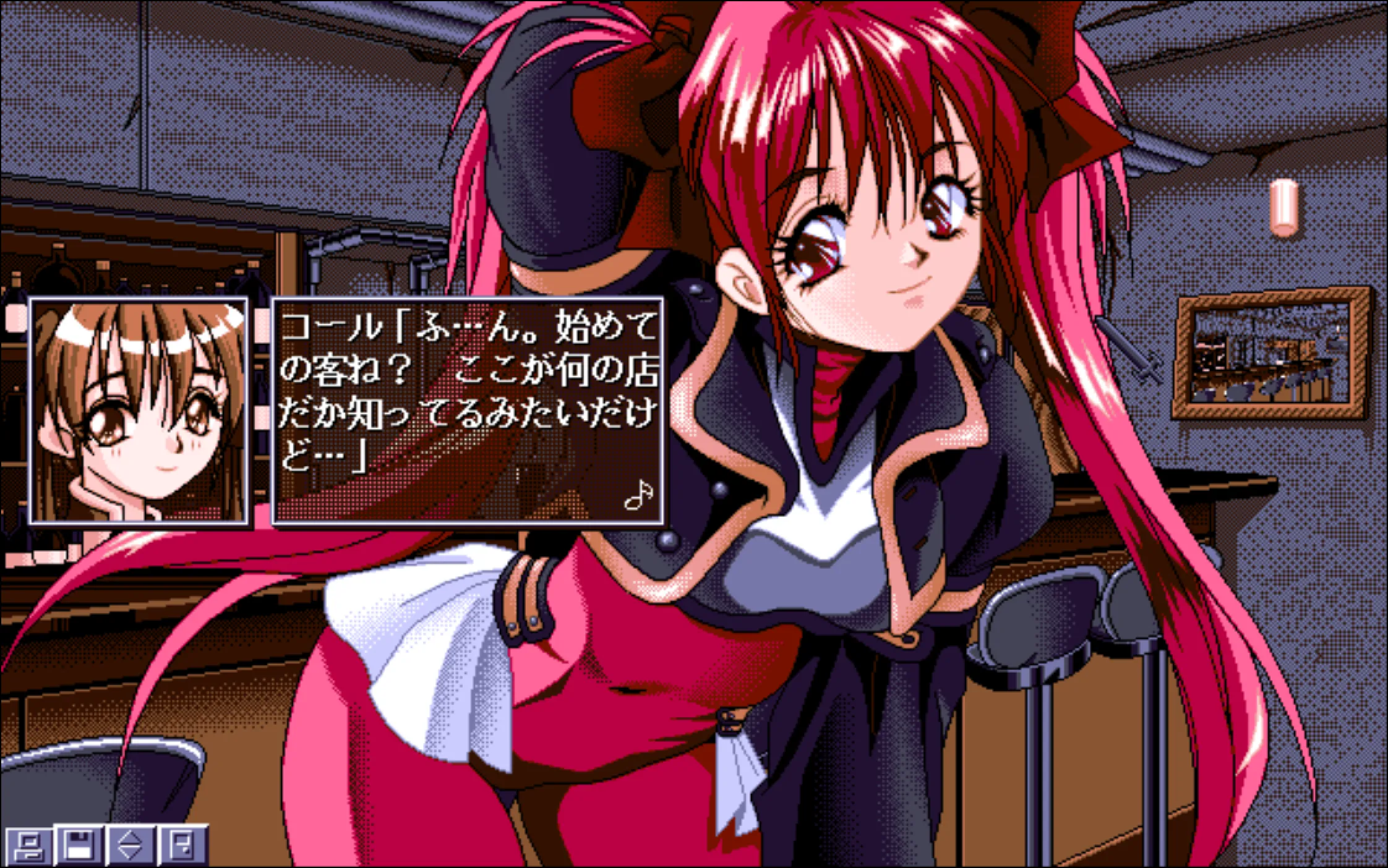
- Save States: With
STATSAVE=truein your config, you get a Stat tab with 10 save slots - Mouse Control: Press F12 or Middle Click to control the internal mouse cursor
- Game Speed: Lower the CPU multiplier if games run too fast, increase if too slow
- GDC Issues: If graphics are corrupted, hold End while resetting and change GDC from 5MHz to 2.5MHz in ディップスイッチ2