Magpie Setup Guide
Magpie is an extremely lightweight application for window upscaling which provides a serious visual enhancement for older visual novels and video games.
The advanced window scaling algorithms applied by Magpie to windowed applications provide older low-resolution content a sharp appearance on today's high-resolution monitors.
Installation
Download the Latest Release of Magpie
- Visit the Magpie Releases page
- Download the latest version of Magpie
- Unzip the file to a location that is easy to locate
- Run
Magpie.exeto begin using it
Basic Use of Magpie
Hotkeys
Magpie allows users to upscale windows in two ways:
- Full Screen - Fill your entire screen
- Default Hotkey:
Alt + Shift + A
- Default Hotkey:
- Windowed - Allow the window to remain within the boundaries of your monitor
- Default Hotkey:
Alt + Shift + Q
- Default Hotkey:
How to Get Started Quickly
- Launch Magpie
- Run your visual novel or video game
- Click on the window of the game to select it as active
- Press
Alt + Shift + Ato use full-screen upscaling, orAlt + Shift + Qto use windowed upscaling - Press the same hotkey once more to disable the upscaling
Before Scaling:
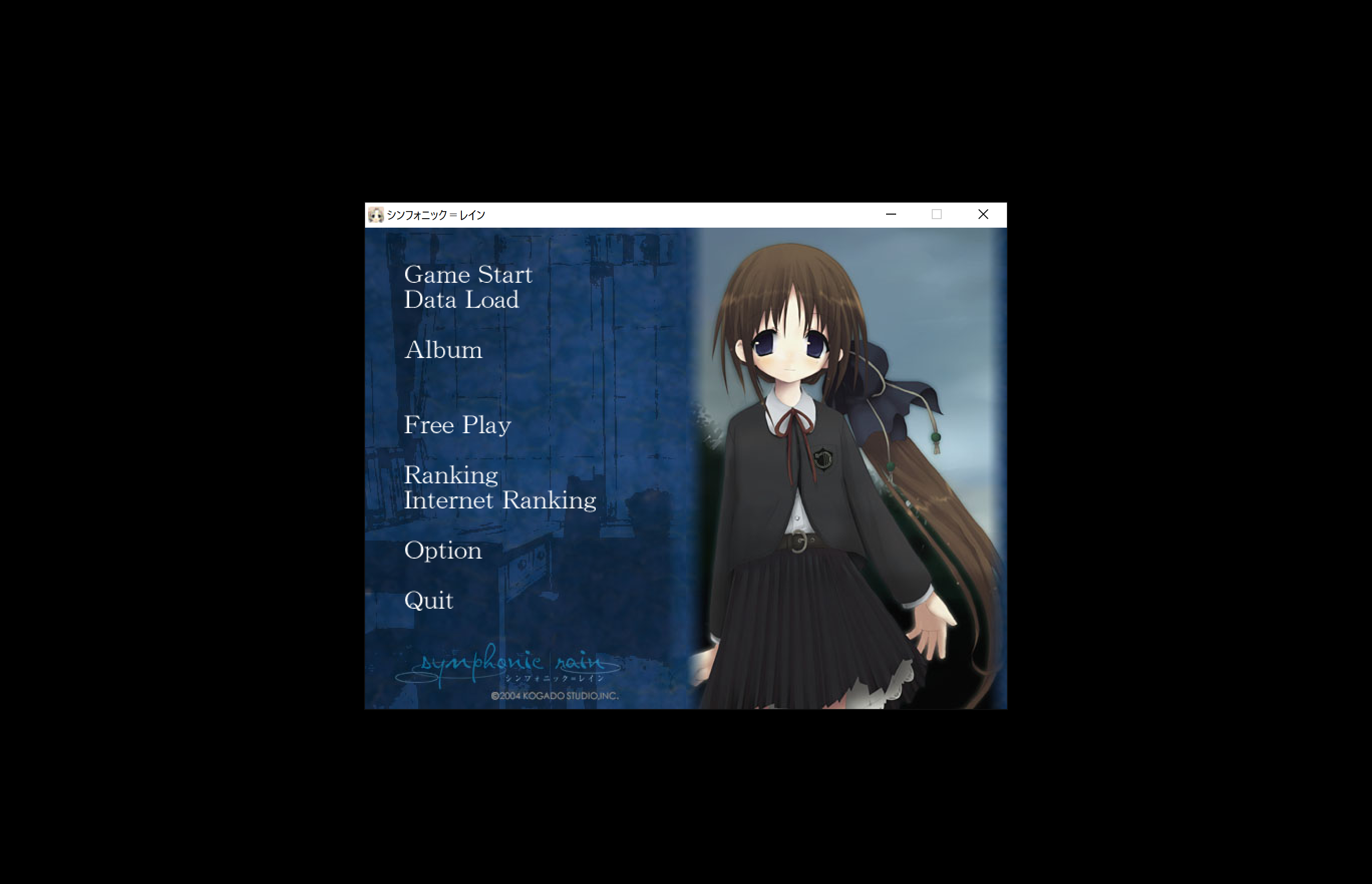
After Scaling:

Scaling Algorithms
Magpie comes with several pre-configured scaling options specifically designed to support the artwork found in visual novels.
Best for VNs:
- CuNNy - This is the best choice for VN artwork. It creates stunning effects on illustrated characters and backgrounds. Recommended.
- Anime4K - Excellent for VN sprite upscaling, with many variants
- ACNet - Eliminates blurry/distorted CGs during upscale
When CuNNy is Too Slow:
- FSR - Much faster than CuNNy while creating nice results. Suitable for lower-end hardware
- Lanczos / Jinc - Classic methods that will function on anything
- FSRCNNX - Compromise between speed and quality
Older VNs (PC-98):
- CRT Shaders (Easymode, Geom, Hyllian, Lottes) - Adds the nostalgic feel of CRT
- xBRZ / MMPX - Smoothes pixel art without distorting the style
- Pixellate / SharpBilinear - Maintains pixel clarity without blurring
Optional Post-processing:
- CAS - Rapid sharpening tool
- AdaptiveSharpen - More gentle and won't ruin fine detail
- SMAA / FXAA - Reduces harsh edge blur on text/UI elements
Configuring
Suggested Configuration for Visual Novels
CuNNy is generally the default choice for visual novels due to its design around the type of artwork seen in most VNs.
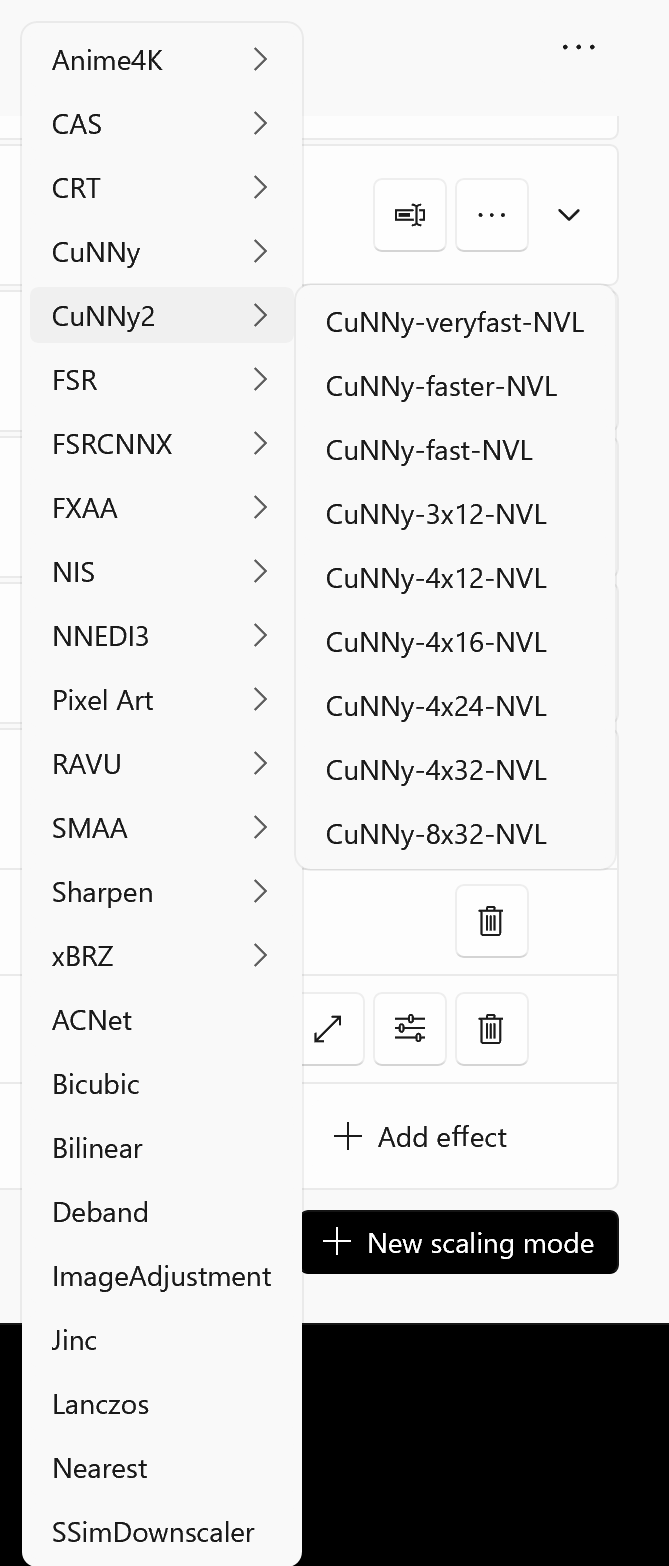
- CuNNy-NVL - Best starting point for standard VN art
- CuNNy-DS - Provides additional cleaning if your original source appears to be noisy/soft
- CuNNy-fast - When your GPU cannot run the normal version
While the larger versions (8x32, 4x32) result in better visuals they do come at a cost. In case you notice stuttering or a very low frame rate, try reducing the size of the upscaling or using the "fast" version.
To enable CuNNy:
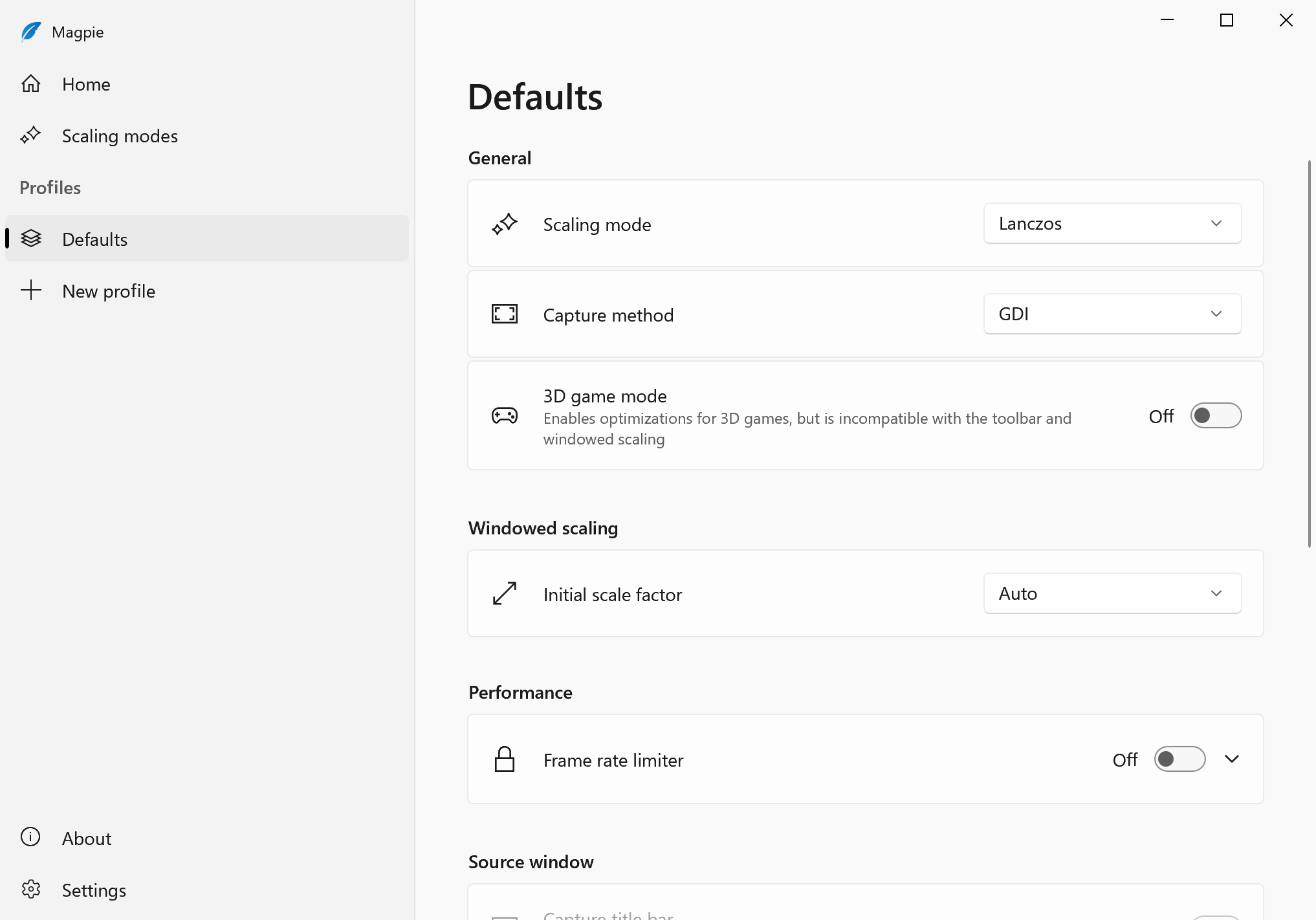
- Open Magpie and open a new profile
- Look for the scaling mode setting under General
- Replace with a CuNNy variant
Profiles
Magpie has the ability to create multiple profiles and assign various settings for scaling mode and capture method. Based upon the current game you're playing, you can quickly switch between these profiles.
Choosing Graphics Cards
If you have a laptop with both a dedicated and integrated graphics card, ensure you choose the correct one.
- Open your profile settings
- Find the Performance tab
- Choose the graphics card you wish to use
Troubleshooting
Tip: Some older games may be able to upscale smoother if you disable DPI scaling in the game's compatibility settings before running through Magpie.
It would likely be better to use the game's native resolution settings instead of using Magpie's upscaling for games that contain their own resolution selection options.