Kirikiroid2 Setup Guide
This page covers how to set up and use Kirikiroid2 to run Kirikiri engine visual novels natively on Android.
Unlike emulation-based solutions like GameHub Lite, Kirikiroid2 runs games natively on your device. This means better performance, lower battery usage, and smoother gameplay for compatible titles.
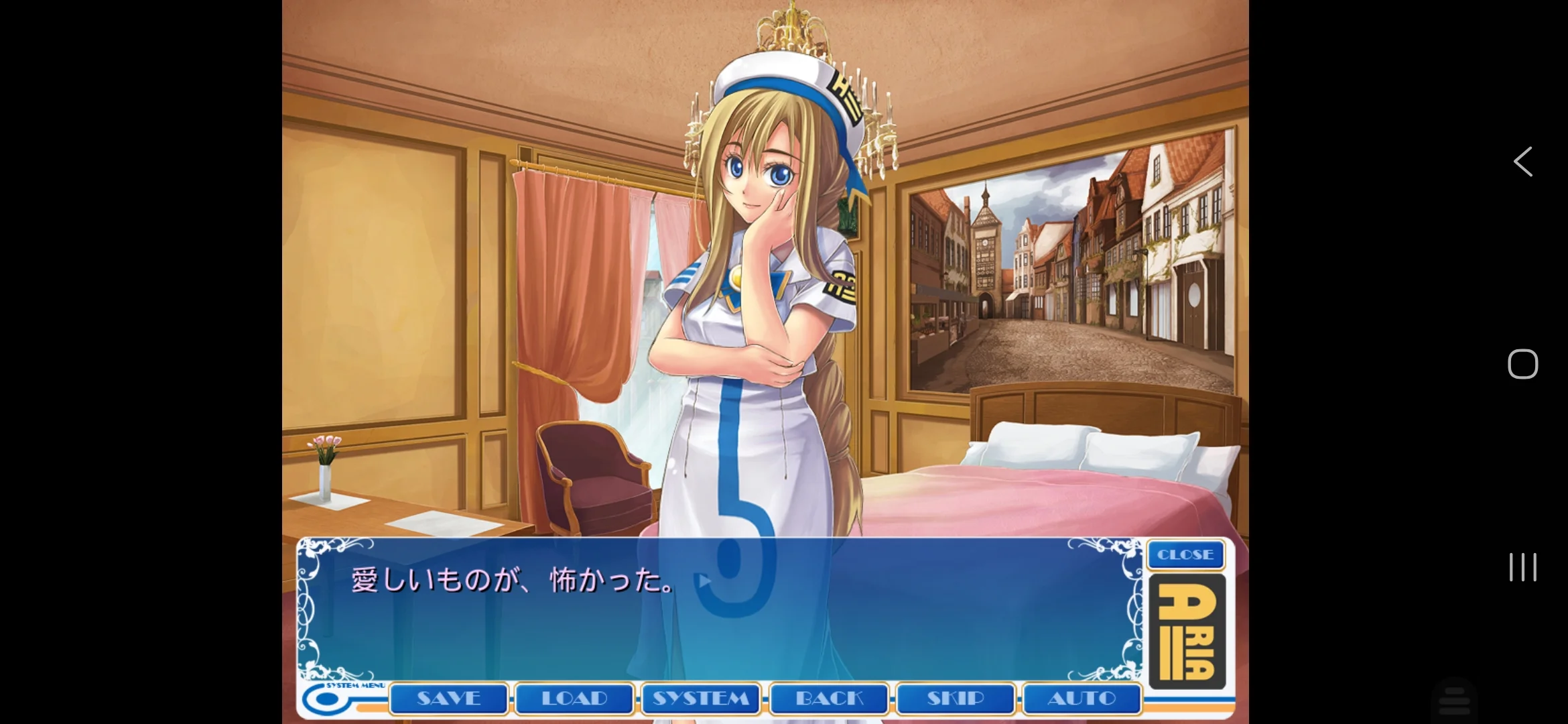
About Kirikiri
Kirikiri is one of the most popular visual novel engines in Japan. Many classic and modern VNs use this engine, which you can identify by:
.xp3archive files in the game folder (e.g.,data.xp3,video.xp3)- A
krkr.eXeorkrkrrel.exeexecutable - A
datafolder containing.xp3files
You can browse Kirikiri VNs on VNDB.
Installation
Step 1: Download Kirikiroid2
Download the debloated version of Kirikiroid2:
- Navigate to Kirikiroid2-debloated Releases or AVN2.0
- Download the latest APK (currently v1.4.0)
- If your browser warns about the download, select "Keep" or "Download anyway"
Important: Do not use the original Kirikiroid2 from the Play Store or other sources. The original version doesn't work on modern Android and contains adware. The debloated version removes tracking and supports Android 14.
Step 2: Install the APK
- Open the downloaded APK file
- If prompted, enable "Install from unknown sources" for your browser or file manager
- Complete the installation
- When the app first launches, grant storage permissions when prompted
Tip: If the file browser inside Kirikiroid2 appears empty, you may need to manually enable "All files access" in your Android settings. Go to Settings → Apps → Kirikiroid2 → Permissions → Files and media → Allow management of all files.
Step 3: Get Game Files
You can either transfer games from your PC or download them directly to your phone.
If transferring from PC:
- Locate the game folder on your PC (contains the
.xp3files) - Copy the entire folder to your Android device
- Place it somewhere easy to find, like
Internal Storage/Games/
If downloading directly: Just extract the game files to a folder on your device. Make sure the .xp3 files are at the root of the game folder, not nested in subfolders.
Step 4: Launch the Game
- Open Kirikiroid2
- Navigate to the folder where you placed your game
- Select the main
.xp3file (usuallydata.xp3)
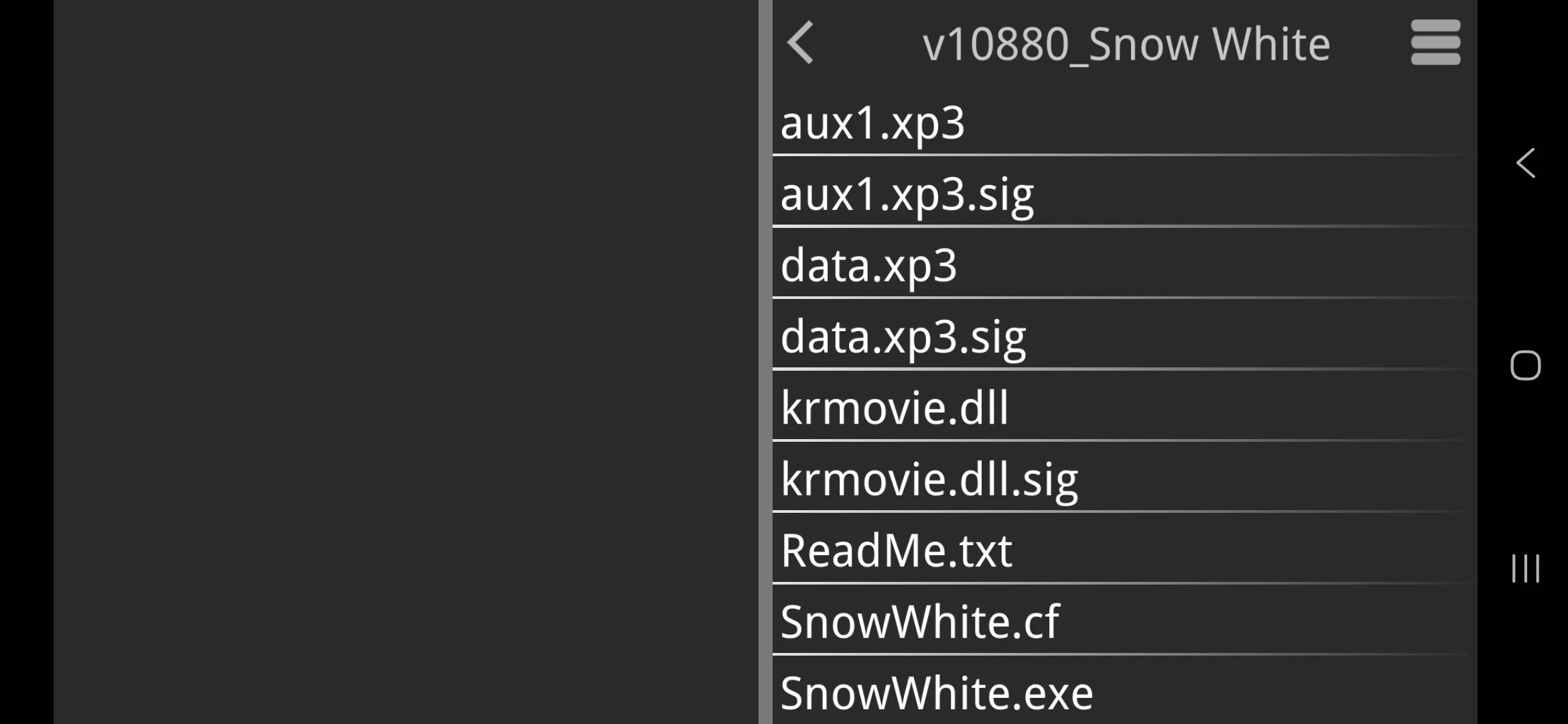
That's it. The game should launch and you're ready to play.
Configuration
You can access settings from the file browser before launching a game. Tap the hamburger menu in the top right corner and select Global Preference.
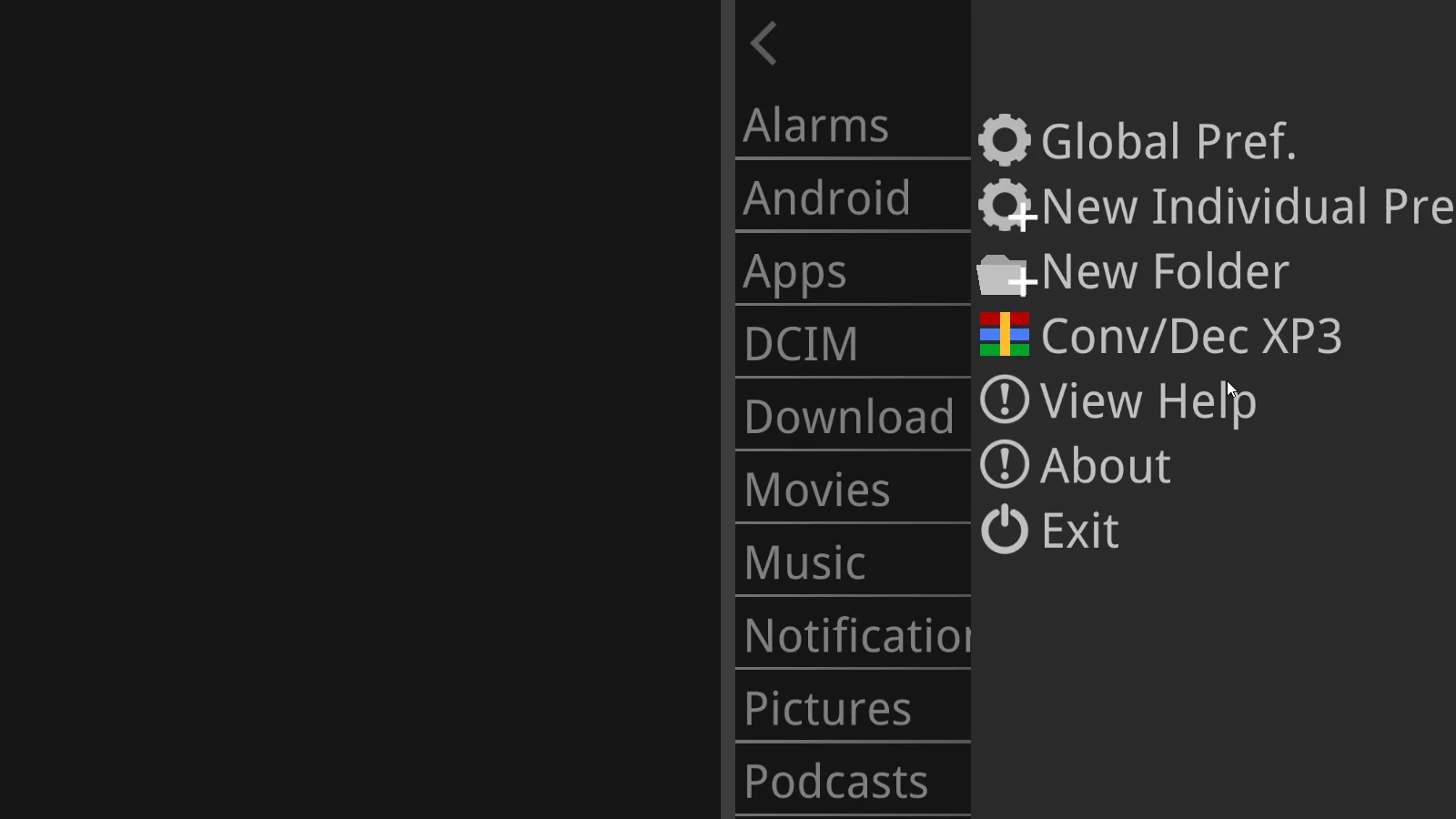
General Preferences
- FPS Limit: Cap the framerate if needed
- Hide System Bar: Hide the Android navigation bar for a fullscreen experience
- Renderer: You can enable OpenGL for better performance by selecting Renderer and choosing OpenGL instead of Software

In-Game Controls
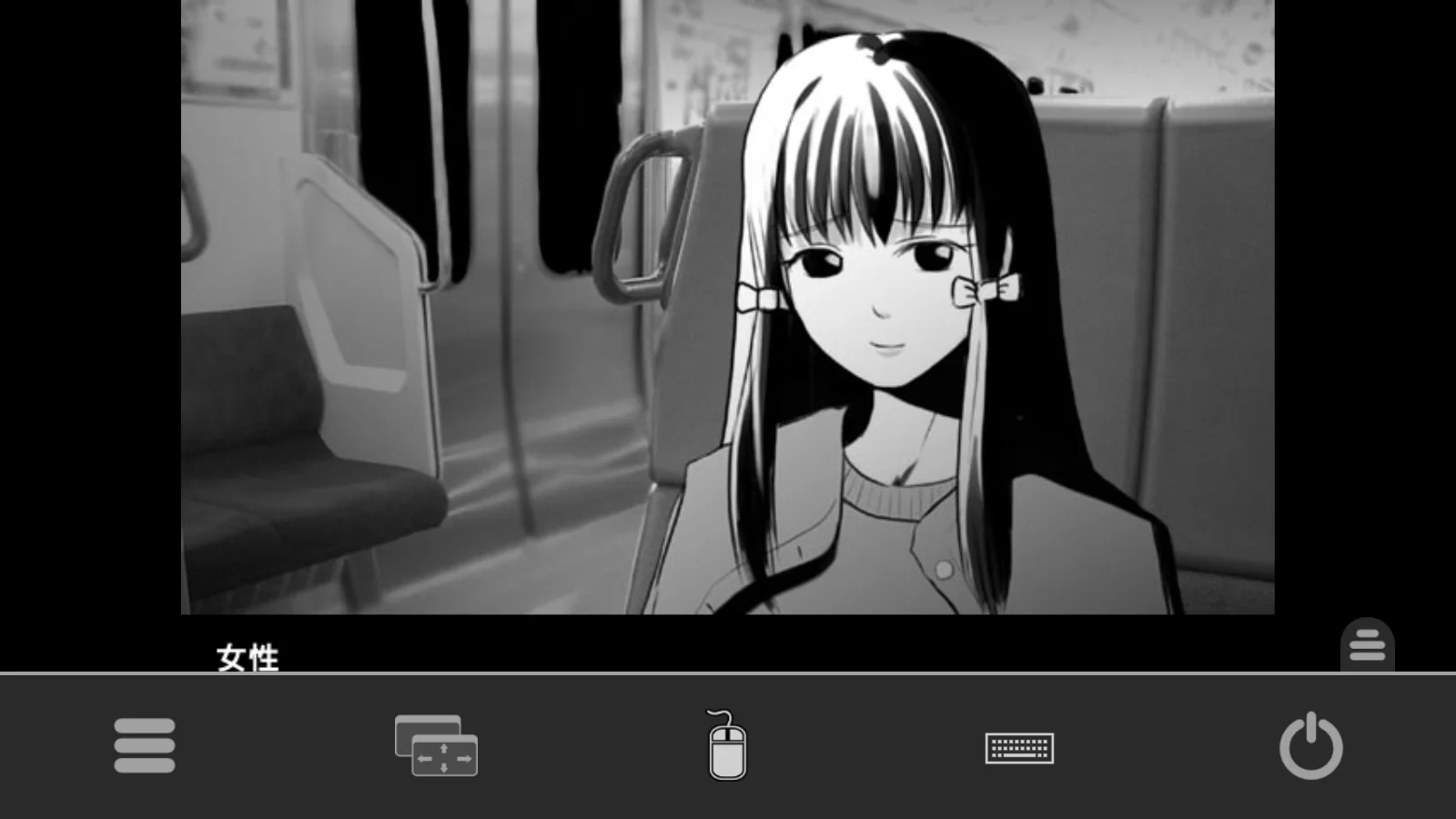
While playing a game, you can bring up the menu at the bottom by dragging up from the bottom of the screen. The menu contains:
- Hamburger menu: Opens the game menu with standard options like saving, loading, and text speed
- Resize button: Move and resize the game window
- Mouse cursor: Brings up a virtual mouse cursor
- Keyboard: Opens your device keyboard for text input
- Power button: Exit the game
Text Cutoff Fix
Some games may have text cut off at the bottom of the screen. To fix this, use an external font:
- Go to Global Preference
- Select Default Font
- Find your font file (must be
.ttfor.otf) - Select it
Patches
Many Kirikiri games require patches to run properly on Kirikiroid2:
- Check if your game needs a patch at the Kirikiroid2 Patch Collection
- Download the patch for your game
- Extract the patch files into your game folder (alongside the
.xp3files) - Launch the game again
Known limitations:
- Some games have slow fade transitions
- Save functionality doesn't work for certain titles
Troubleshooting
Common Issues
| Problem | Solution |
|---|---|
| App crashes on launch | Make sure you're using the debloated v1.4.0, not the original |
| File browser is empty | Enable "All files access" in Android settings for the app |
| Game crashes on startup | Try applying patches |
| Menu navigation broken | Enable virtual mouse |
| Can't save progress | Known issue for some games with no fix available |
| Slow transitions | Normal for some games, performance varies by title |
| Game lags with OpenGL | Try changing Max Texture Size to 2048 in the OpenGL renderer options |
| Still lagging with OpenGL | In OpenGL renderer options, select OpenGL Extensions and try disabling any enabled extensions |
Alternative Version
If the debloated version doesn't work for your specific game, you can try Kirikiroid2Yuri, a fork with additional patches. However, it has some known issues with UI positioning and save functionality, so only use it as a fallback.