Bottles Setup Guide
This guide covers how to play Windows visual novels on Linux using Bottles. Bottles is a Wine prefix manager that makes it easy to run Windows games and applications without complicated setup.
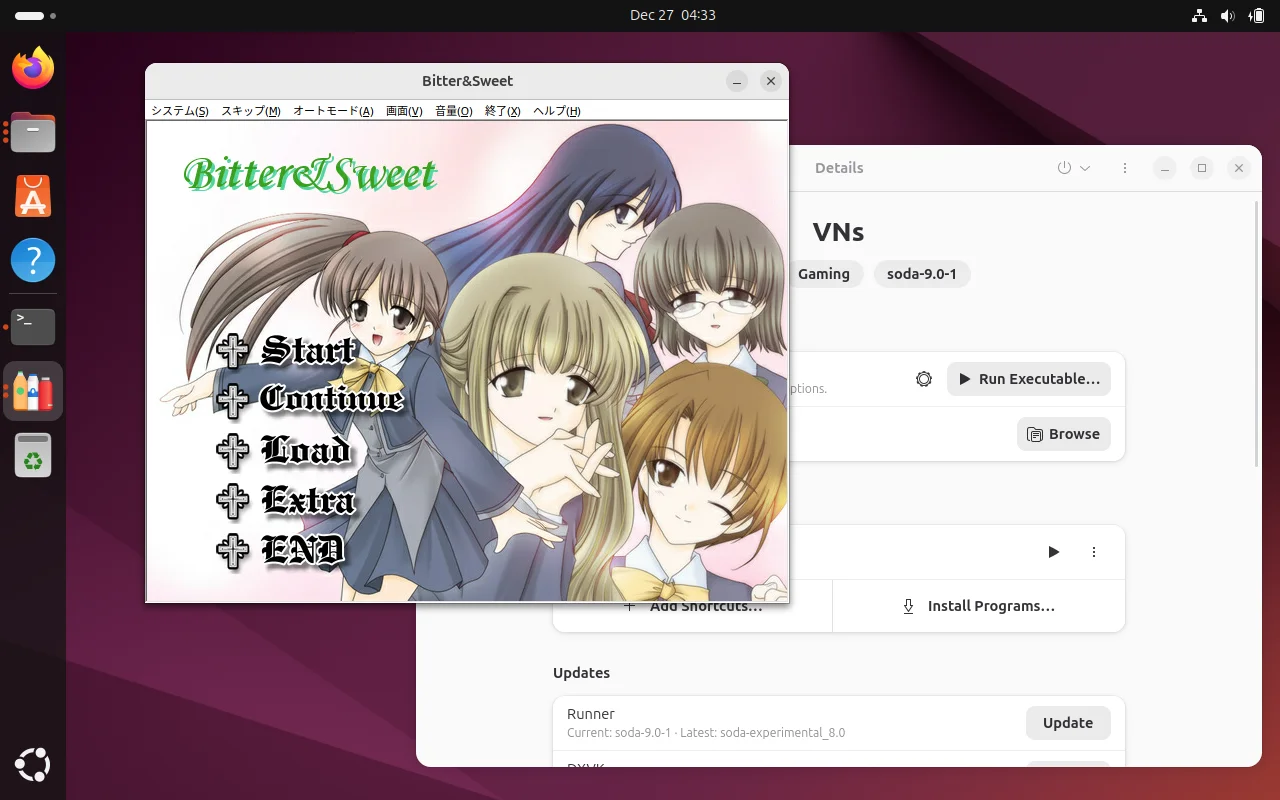
If you're coming from Windows, think of Bottles as an easy and convenient way to manage Wine. Each "bottle" is an isolated Windows environment where you can install and run your games.
Installing Bottles
You can install Bottles with Flatpak. On Ubuntu or similar distros, just run the following commands:
# Install Flatpak if you don't have it
sudo apt install flatpak

# Add the Flathub repository
flatpak remote-add --if-not-exists flathub https://flathub.org/repo/flathub.flatpakrepo
Run these commands, reboot, and then you're ready to install Bottles:
flatpak install flathub com.usebottles.bottles
Launch Bottles from the applications menu, or just open the terminal and run flatpak run com.usebottles.bottles.
Creating a Bottle
Once you have Bottles open:
- Click Create New Bottle
- Give it a name (I just use "VNs" or "Visual Novels")
- Select Gaming as the environment. This includes dependencies that games commonly need
- Set Runner to
sys-winefor better compatibility with tools like Textractor - Leave Bottle Directory on default unless you have a reason to change it
- Click Create
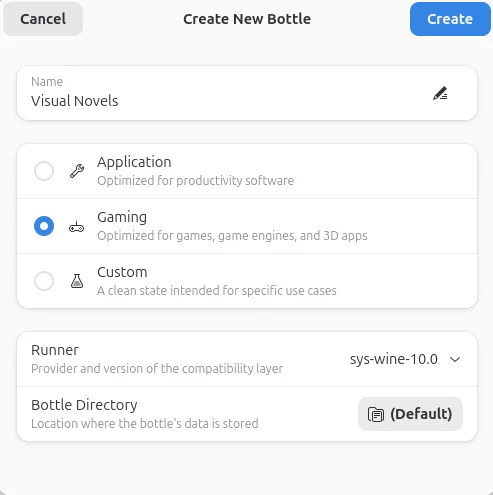
Bottles will download and configure everything automatically. This might take a minute.
Configuring for Japanese Games
Before installing anything, there are a few settings worth changing to make sure Japanese text displays correctly.
Adding Japanese Font Support
- Select your bottle
- Under Options, click Dependencies
- Search for and install
cjkfonts
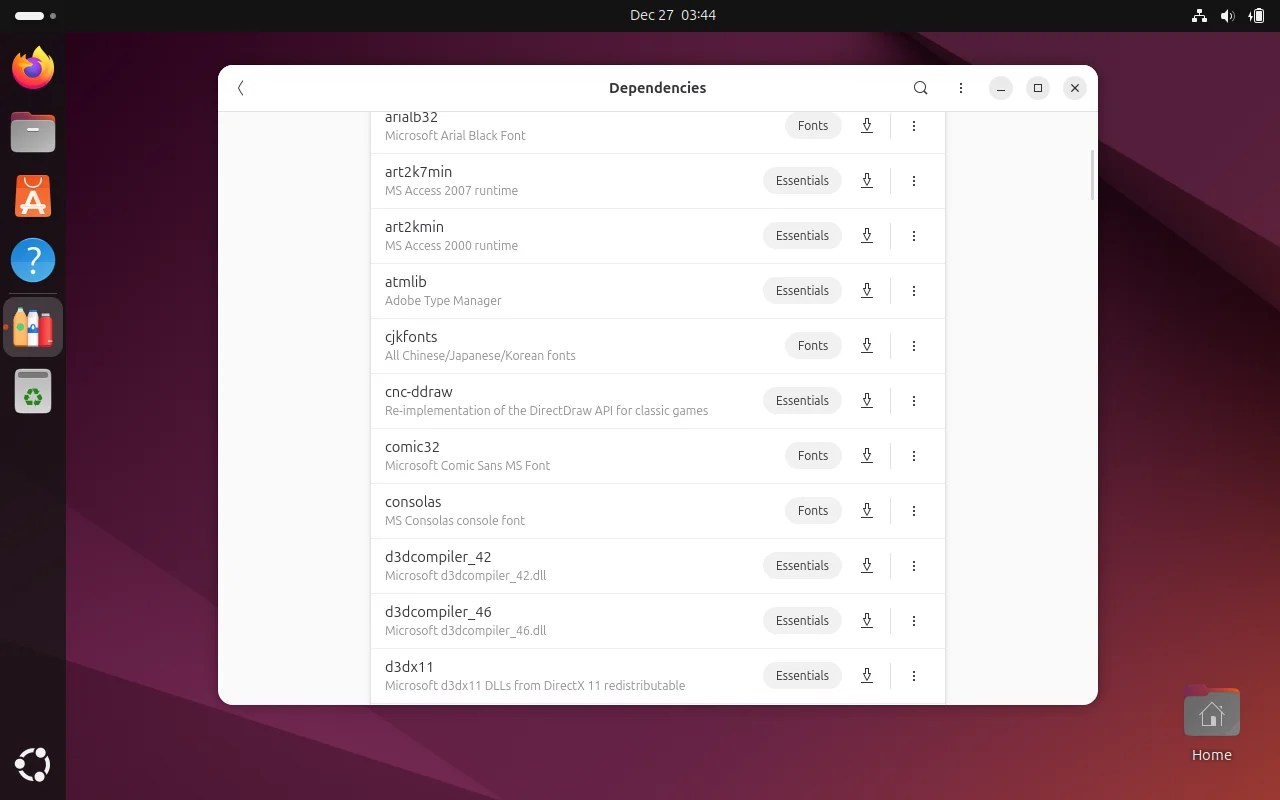
Without this, Japanese text will likely show up as empty boxes.
Setting Japanese Locale
Some games expect to be running on a Japanese system. To set this up:
- Under Options, click Settings
- Scroll down to the Compatibility section
- Under Environment Variables, add the following:
LANG=ja_JP.UTF-8LC_ALL=ja_JP.UTF-8
Common Dependencies
Depending on the game, you might also need:
vcredist2019- Visual C++ runtime, required by many gameslavfilters- Fixes audio/video playback issuesquartz- Another audio fix for older games
You don't need to install all of these upfront. If a game has issues, check if one of these helps.
Installing a Visual Novel
To install a game:
- Select your bottle
- Click Run Executable
- Navigate to and select the game's installer (
.exefile) - Follow the installation wizard as you would on Windows
Once installed, the game should appear in your bottle's program list. If it doesn't show up automatically, you can add it manually by clicking Add Shortcuts and browsing to the game's .exe.
For games that don't require installation, just click Add Shortcuts and add the game's .exe directly.
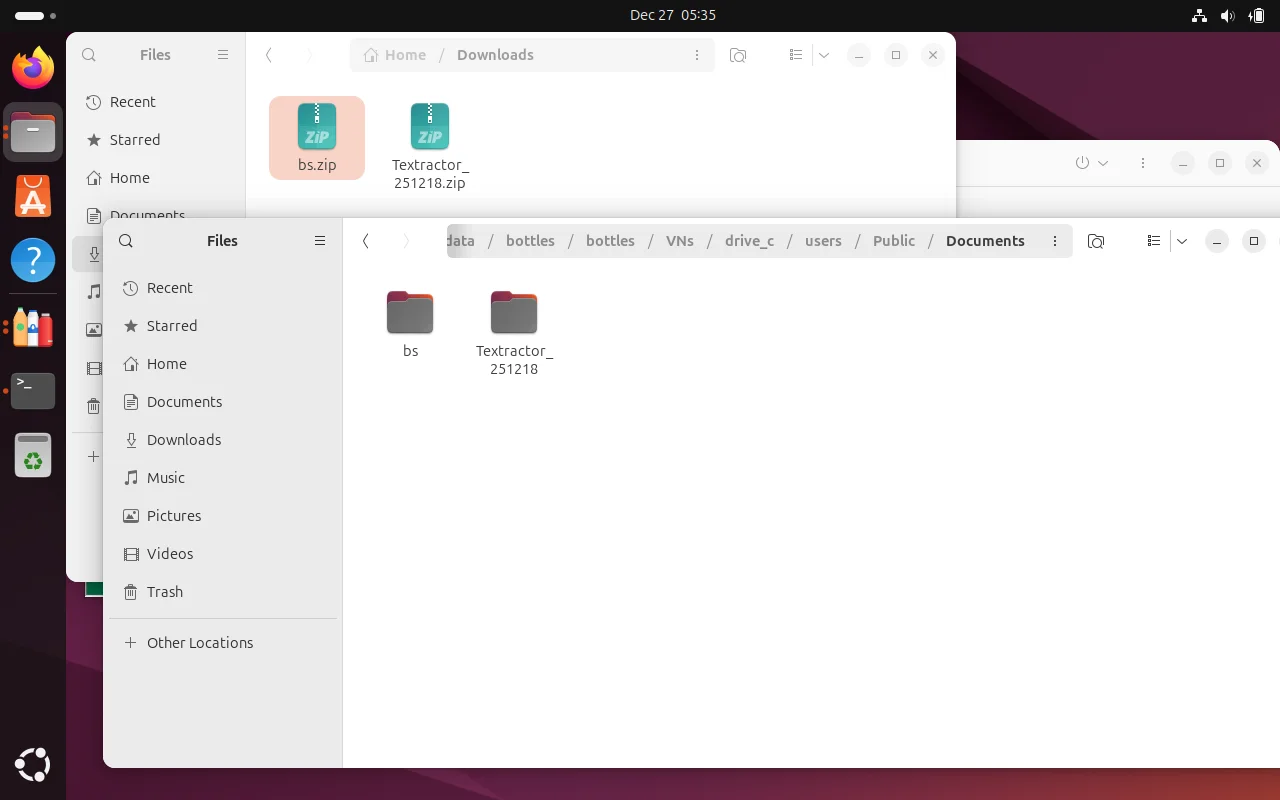
Important: Store your game files inside the bottle's
drive_cfolder. Flatpak sandboxes Bottles, so games stored outside may have issues accessing save data or other files. You can find your bottle's folder at~/.var/app/com.usebottles.bottles/data/bottles/bottles/[YourBottleName]/drive_c/.
Running Games
Select the game from your program list and click the play button (▶). Hopefully it just works.
You can also use Run Executable to run any .exe directly without adding it as a shortcut.
When Things Don't Work
If the game crashes or has issues, here are some things to try:
Black screen or immediate crash: Try switching to a different runner. Go to your bottle's settings and under Runner, try switching between sys-wine and soda. Different runners work better for different games.
No text displaying: Make sure you installed cjkfonts from the dependencies.
No audio or broken audio: Install the lavfilters dependency.
Game won't start at all: Try running the executable as administrator. Right-click on the program and select Run as Administrator.
Text Hooking
You can run text hookers like Textractor directly in Bottles alongside your games.
Running Textractor in Bottles
- Download Textractor and extract it to your bottle's
drive_cfolder - In Bottles, click Add Shortcuts and add the Textractor
.exe(usex86orx64depending on your game) - Start your VN first, then start Textractor from the same bottle
- Attach Textractor to your game as you normally would
Both programs need to run from the same bottle for Textractor to see and hook the game process.
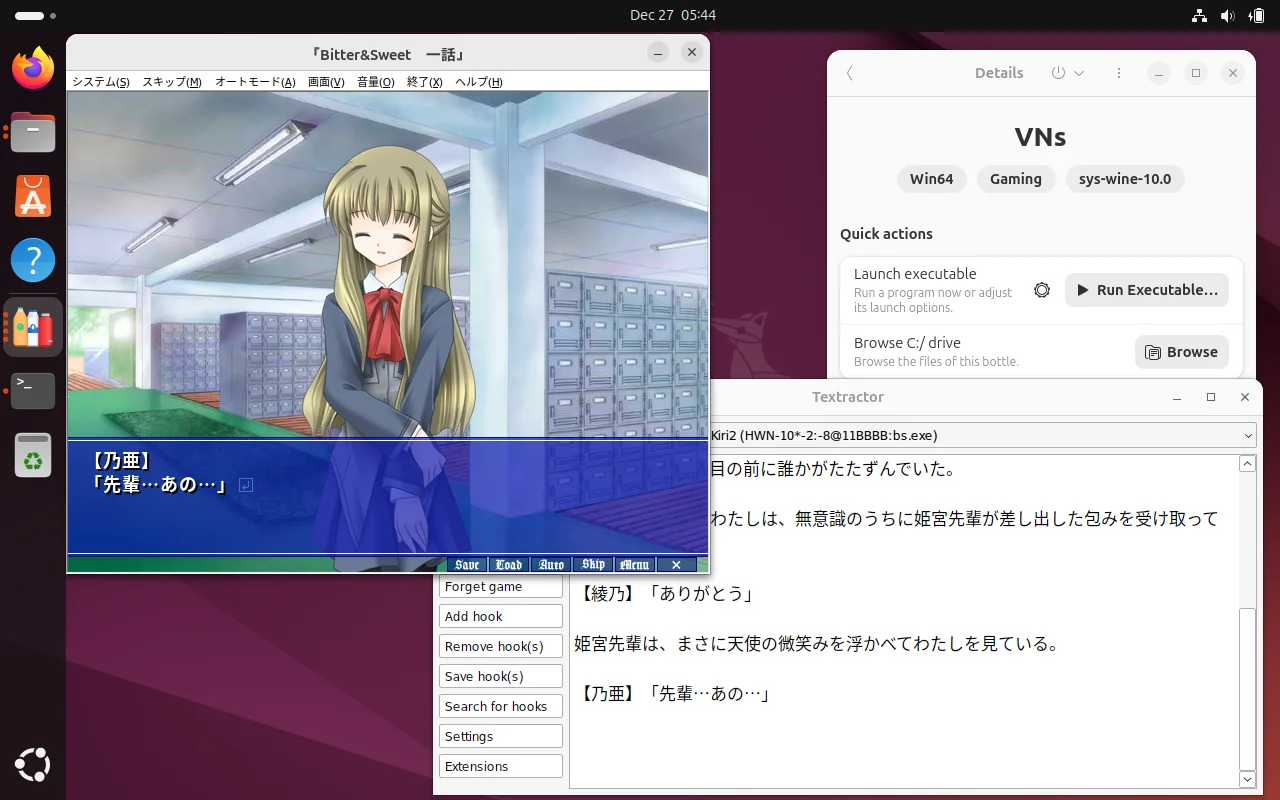
Tip: If Textractor's extensions menu doesn't work (right-click not responding), try switching your bottle's runner to
sys-wineinstead ofsoda. This fixes the issue for most users.
Alternatives
Tips
- Duplicate working bottles: Once you have a bottle configured well, you can duplicate it by clicking the backup button (top right of bottle details) and selecting "Duplicate"
- Check VNDB discussions: The discussion tab on a game's VNDB page sometimes has notes about running it on Linux
- Keep runners updated: Check the Updates section in Bottles for newer runner versions if a game isn't working