ShaderGlass Setup Guide
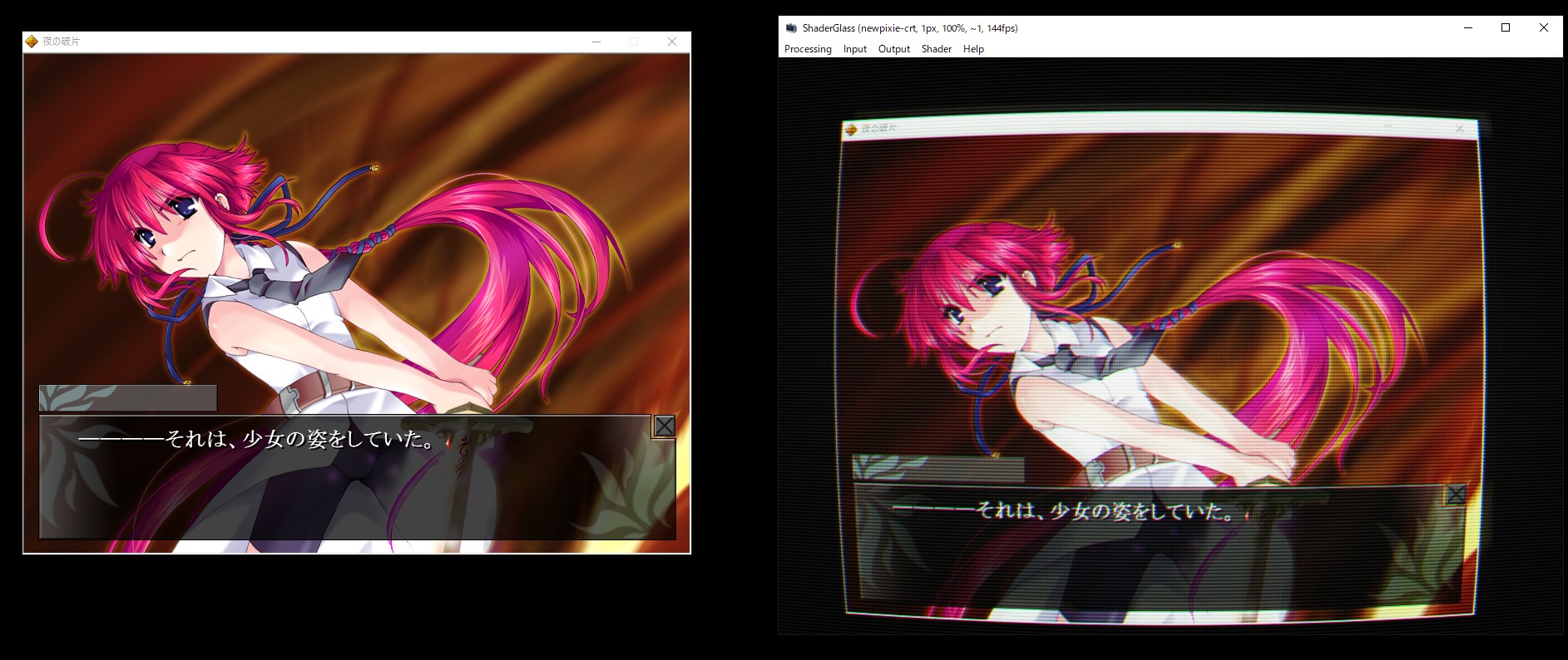
This guide covers ShaderGlass, a lightweight Windows overlay application that applies shader effects on top of your desktop or specific windows. It includes over 1,200 built-in shaders for CRT simulation, upscaling, and various visual effects.
ShaderGlass can work as a much lighter-weight alternative to Magpie if you don't need neural network upscaling. For more detailed information, see the official ShaderGlass manual.
Installation
- Download the latest release from the ShaderGlass Releases page
- Extract the downloaded archive to a folder of your choice
- Run
ShaderGlass.exeto start the application
Basic Usage
Operating Modes
ShaderGlass has two main modes:
- Desktop Glass - A transparent floating window that applies shaders to anything behind it. With click-through enabled, this requires the least setup but can be resource intensive.
- Window Clone - Captures and processes a specific application window. You can enlarge the clone window to upscale like Magpie, but you may need to adjust pixel size and shader settings for best results.
You can set a specific window as the input source under Input instead of your entire desktop, but not every application works well with this - some games may crash.
Quick Start
- Launch ShaderGlass
- Launch your visual novel or game
- Select your input source (Desktop or specific Window)
- Choose a shader from the library
- Position the overlay over your game
Recommended Shaders
ShaderGlass includes shaders from the RetroArch library. Try the random button under the Shaders tab to discover new shaders you might like.
For Retro VNs:
- CRT shaders - Emulate old CRT monitors (crt-royale, crt-geom, crt-lottes)
- Scanline effects - Add authentic scanlines
For Upscaling:
- xBR / ScaleFX - Smooth pixel art upscaling
- Sharp-Bilinear - Clean scaling for pixel art
For General Use:
- Sharpening filters - Enhance clarity
- Color correction - Adjust colors and gamma
Configuration
Pixel Size Setting
For crisp results, set Input → Pixel Size to match your game's scaling. This ensures the shader processes pixels correctly.
If your text appears blurry, try adjusting the pixel size setting.
Performance Tips
- Use Window Clone mode for better performance
- Select your dedicated GPU in the Processing settings if you have multiple graphics cards
- Lower frame rate if experiencing performance issues
Saving Profiles
To save your settings:
- Go to Processing → Save profile as
- Choose a name and location for your profile
To load a saved profile, select Processing → Load profile.
You can also set a default profile that loads automatically by pressing Set as default profile.
